


Extract pose from an image using the Pose Scanner, then apply to model (Technology preview)
This reads a picture containing a figure and applies the figure's pose to 3D characters and 3D drawing figures. This is aimed at creating a rough estimation of the pose you want.
|
|
·This function is a technology preview. Try out these features before their official release. ·When you use this feature, the image data is uploaded to the server, where the AI interprets the data and estimates the pose. A network connection is necessary to execute this function. For information on the image uploaded to the server and the generated data, see "About AI features". |
1Select the tool
On the Tool palette, select the [Operation] tool.
2Select the sub tool
Open the Sub Tool palette and select [Object].
3Select the 3D material
Click the 3D character material or 3D drawing figure to edit.
4Import the image
Click [Pose Scanner (image) (Technology preview)] on the Tool Property palette.

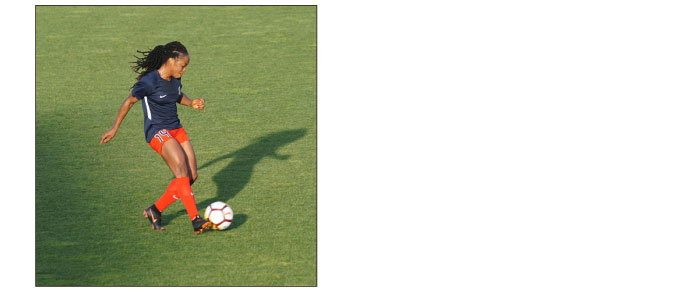
If the file selection dialog box displays, you can select the image containing the pose you wish to apply. In this example, the following photo is selected.
|
|
·Importable file formats are: BMP, JPEG, PNG, TIFF and Targa. ·When using a Tablet/Smartphone, click the Tool Property palette’s [Pose Scanner (camera)] or the [Pose Scanner (photo library)] to take or use photos to import a pose. |
5Apply the pose
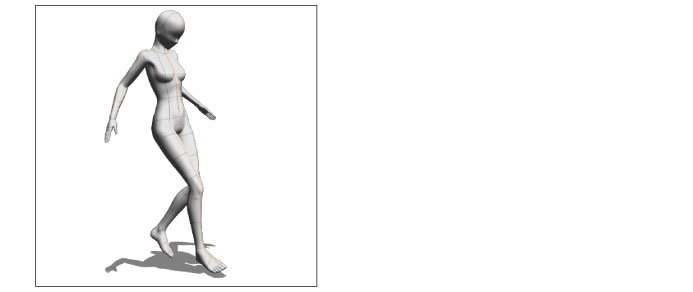
This applies a figure's pose from a photo to 3D characters and 3D drawing figures. Adjust pose details as needed.
|
|
·If you choose an image with multiple figures in it, the pose will reflect the biggest figure in it. ·The figure’s fingers and hand position will not be reflected in the pose. ·Figures may not be recognized depending on the photo used. |