Adding/Deleting a Vanishing Point
The [Perspective ruler] sub tool of the [Ruler] tool allows you to add or delete a vanishing point.
Add Vanishing Point
To add a vanishing point, select the [Perspective ruler] sub tool and set the process to [Add vanishing point] in the Tool Property palette. Beware that for [1 point perspective] rulers and [2 points perspective] rulers, the result may differ depending on the [Change perspective drawing method] setting on the Tool Property palette.
|
|
The [Change perspective drawing method] setting has no effect on [3 points perspective] rulers. The auxiliary vanishing point will be added at the intersection of the guide line. |
When Change perspective drawing method is OFF
When [Change perspective drawing method] is turned off, allows you to add an auxiliary vanishing point without changing the perspective drawing method.
1Select the sub tool
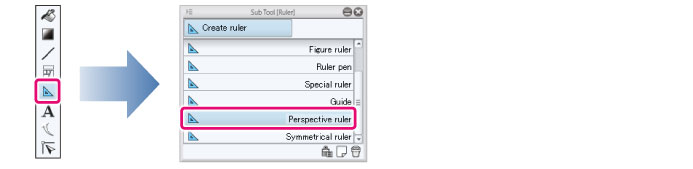
Select the [Ruler] tool and select [Perspective ruler] from the Sub Tool palette.
|
|
The initial configuration of the sub tools has been changed from Ver.1.6.2. For those who are used to a previous version of Clip Studio Paint, this operation is now performed by selecting the [Figure] tool and then selecting [Create ruler] > [Perspective ruler] on the Sub Tool palette. |
2Configure the tool property
Configure the Tool Property palette as follows.
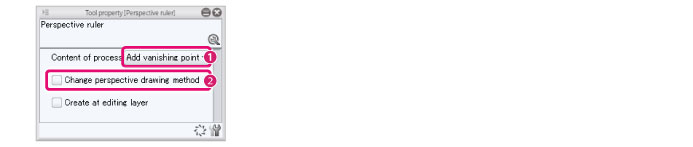
(1) Set [Add vanishing point] for [Process].
(2) Turn off [Change perspective drawing method].
3Add the vanishing point
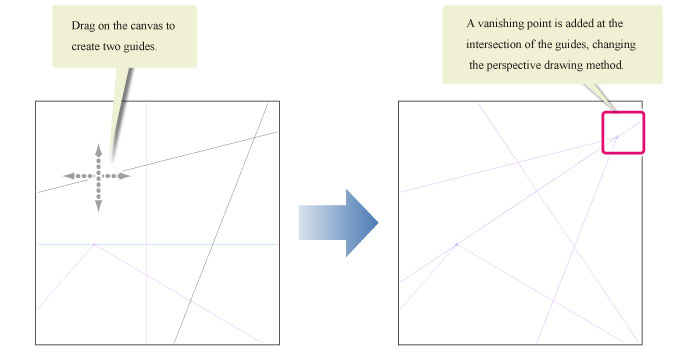
Drag on the canvas and create two guide lines. The auxiliary vanishing point will be added at the intersection of the guide line. The perspective drawing method does not change.

When Change perspective drawing method is ON
When [Change perspective drawing method] on the Tool Property palette is turned on, adding a vanishing point to a [1 point perspective] or [2 points perspective] ruler also changes the perspective drawing method.
·Adding a vanishing point to a one-point perspective ruler changes the ruler to a two-point perspective ruler.
·Adding a vanishing point to a two-point perspective ruler changes the ruler to a three-point perspective ruler.
1Select the sub tool
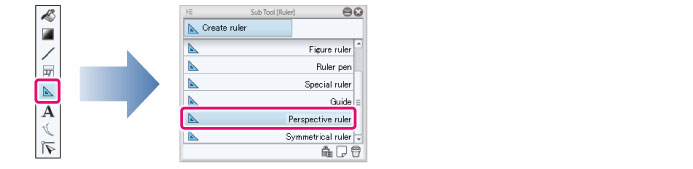
Select the [Ruler] tool and select [Perspective ruler] from the Sub Tool palette.
|
|
The initial configuration of the sub tools has been changed from Ver.1.6.2. For those who are used to a previous version of Clip Studio Paint, this operation is now performed by selecting the [Figure] tool and then selecting [Create ruler] > [Perspective ruler] on the Sub Tool palette. |
2Configure the tool property
Configure the Tool Property palette as follows.
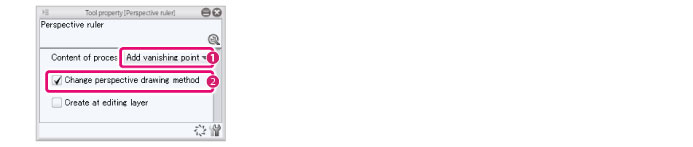
(1) Set [Add vanishing point] for [Process].
(2) Turn on [Change perspective drawing method].
3Add the vanishing point
Drag on the canvas and create two guide lines. A vanishing point is added at the intersection of the guide line, and the perspective drawing method, changed.