


About the 3D Object Setup Screen
The 3D Object Setup screen is the screen displayed when [3D object] is selected in the [New] dialog box.
In this screen, you can load 3D data and set up a 3D object that can be used in CLIP STUDIO PAINT. Settings to switch between multiple textures or move specific parts with a slider can be added. Setting these allows you to customize the display of 3D object materials in CLIP STUDIO PAINT.
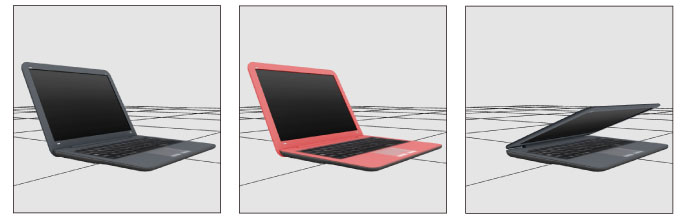
Camera angles and [Node] (part) displays can also be set in the 3D data, and can then be selected in CLIP STUDIO PAINT.

The 3D Object Setup screen in CLIP STUDIO MODELER consists of the following main components.
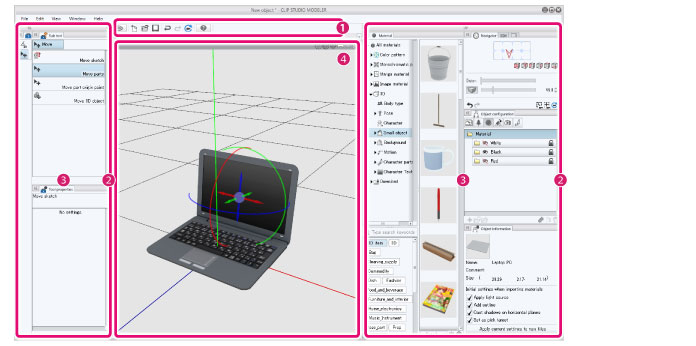
(1) Command Bar
Allows you to use various functions by clicking the icons. For information on each item in the [Command Bar], see "Command Bar" .
(2) Palette Dock
Area accommodating multiple palettes.
(3) Palette
Screen for configuring settings. There are various types of palettes. In this screen, palettes are accommodated in palette docks. However, they can also be displayed individually as windows or dialog boxes.
For information on palettes that can be used in the 3D object setup screen, see "Palettes in the 3D Object Setup screen" .
(4) Document Window
Area for displaying and performing operations for models being created. For information on each item in the [Document] window, see "Document Window" .