


Skew
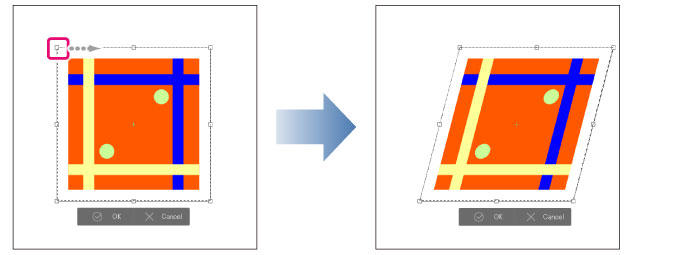
Selecting [Edit] menu > [Transform] > [Skew] moves the handles according to the guide lines.
Dragging the handles of the bouding box, skews the shape along the guide lines.
|
|
·Dragging a handle while holding down Ctrl allows you to scale the image up and down. ·Dragging a handle while holding down Ctrl + Shift allows you to scale the image without changing the original aspect ratio. ·Dragging a handle while holding down Ctrl + Alt keys allows you to scale up/down the image from the center point. ·For details on the Transform operates, see "Transform image". ·For details on how to use Transform, see "Using handles and palettes to transform". ·You can also use the [Tool Property] Palette to Transform. For details on the [Tool Property] palette settings, please see to the following "Tool property palette settings". ·Layers that support [Skew] include Raster layers, Vector layers, Layer Masks, Image material layers, Text layers, Balloon layers, Frame Border folders, Rulers and Selection layers. |