


Scaling Up/Scaling Down
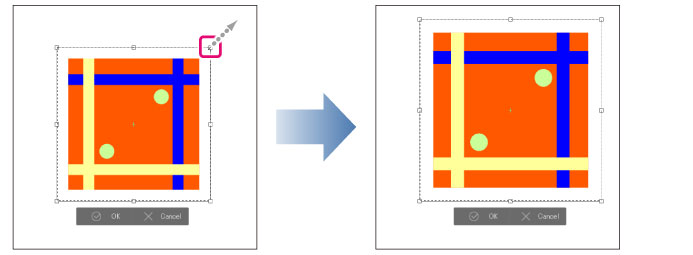
Selecting [Edit] menu > [Transform] > [Scale up/Scale down/Rotate] scales the image up and down by dragging the handles.
With this setting, the image cannot be rotated even by dragging the guidelines.
|
|
·Dragging a handle while holding down Alt allows you to scale the image up and down from the center point. ·Hold down Shift while dragging a handle to resize without changing the original ratio. ·Dragging a handle while holding down Ctrl allows you to freely transform the image. ·Dragging a handle while holding down Shift + Ctrl moves the handle according to the direction of the guideline. ·When [Keep aspect ratio] in the [Tool Property] Palette is turned off you can scale without changing the original aspect ratio. ·To rotate an image either select [Rotation angle] from the [Tool Property] Palette or a transformation option from [Mode]. ·For details on how Transform operates, see "Transform image". ·For details on how to use Transform, see "Using handles and palettes to transform". ·You can also use the [Tool Property] Palette to Transform. For details on the [Tool Property] palette settings, please see the following "Tool property palette settings". ·Fill in monochrome layers and Tonal Correction layers do no support [Scale]. |