


Remove dust
Automatically detects fine dust on the selected layer. This filter can erase dust up to a specified size and fill gaps in the main color.
|
Applicable layers |
Raster layer (color) Raster layer (gray) Raster layer (monochrome) |
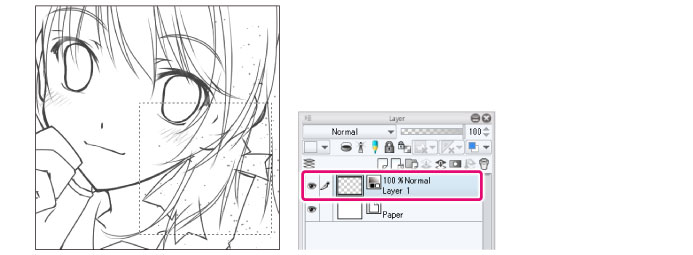
1First select a layer on the [Layer] palette.
|
|
If you create a selection area, the effect will only be applied to the selection area. |
2Select the [Filter] menu > [Correct line] > [Remove dust].
3Adjust the settings in the [Remove dust] dialog box that appears.

(1) Set the [Dust size].
(2) Select the process method in [Mode].
(3) Click [OK].
4The filter is applied and the dust is removed from the image.
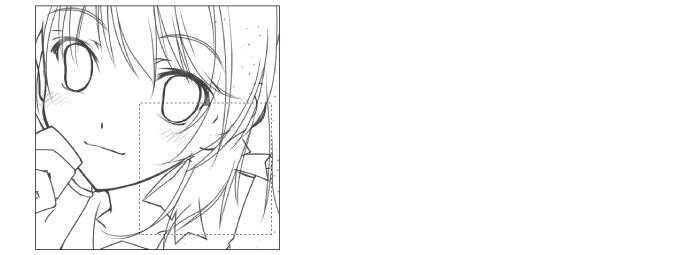
[Remove dust] dialog box

(1) Dust size
Specifies the maximum size for an object to be recognized as dust.
(2) Mode
Specifies the method by which to remove dust.
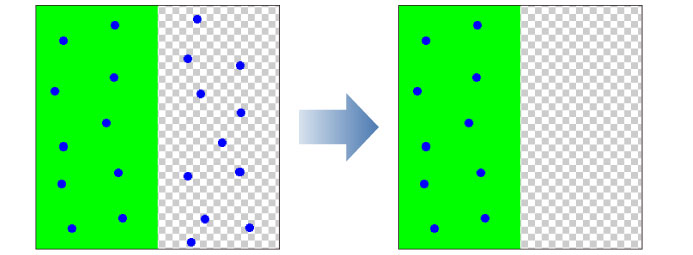
Remove dust from transparency
Small opaque and translucent spots in transparent areas are recognized as dust. The dust is replaced by transparent color.
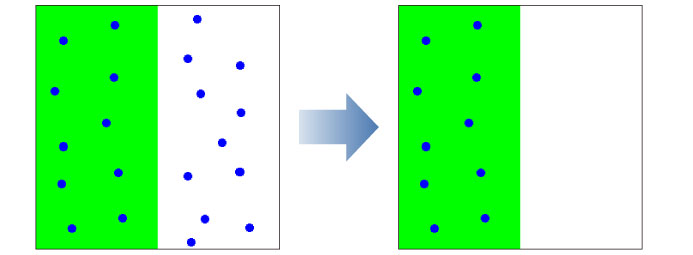
Remove dust from white background
Small non-white spots in areas completely filled white are recognized as dust. The dust is filled with white.
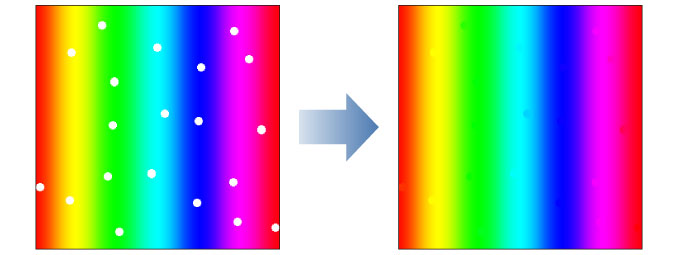
Fill transparent gaps with surrounding color
Small transparent and translucent spots in opaque areas are recognized as dust. The dust is filled with the main color around it.
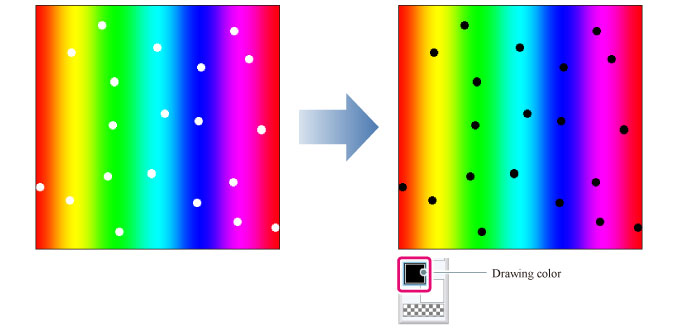
Fill transparent gaps with foreground color
Small transparent and translucent spots in opaque areas are recognized as dust. The dust is filled with the drawing color.
(3) Preview
Turn this on to preview the results on the canvas.