


Search Layer Palette Menu
This section describes the functions included in the menu that displays when you click [Palette menu] on the upper left corner of the [Search Layer] palette.
|
|
Some menu items can be run from the context menu that displays when you right click the mouse. |

Create folder and insert layer
Creates a new layer folder and places the layer selected on the [Layer] palette in the folder.
Duplicate Layer
Makes a copy of the selected layer or layer folder.
For details, see "Duplicate Layer".
Delete Layer
Deletes the selected layer or layer folder.
|
|
When a layer folder is selected, also the layers stored in the folder are deleted. |
Layer mask
Creates a mask for the layer or layer folder selected on the [Search Layer] palette. Masks can be deleted as well as configured.
|
Mask Outside Selection |
Masks the area outside of the selected area. For details, see "Mask Outside Selection". |
|
Mask selection |
Masks the selected area. For details, see "Mask Selection". |
|
Delete Mask |
Deletes the layer mask of a selected layer. |
|
Apply Mask to Layer |
Applies the layer mask. Applying the mask converts the layer into a [Raster] layer. |
|
Enable Mask |
Turning on this item by selecting the menu enables the layer mask. For details, see "Enable Mask". |
|
Show Mask Area |
Turning on this item by selecting the menu displays the masked area in purple. |
|
Link Mask to Layer |
Turning on this item by selecting the menu links the layer and mask. When linked, the mask drawing moves along with the layer when this is moved using the [Move layer] tool. For details, see "Link Mask to Layer". |
Ruler/Frame
Allows you to delete and display rulers, create perspective rulers, and so on. It also allows you to configure whether to move the ruler along with the drawing area of the layer being edited, or separately. For details, see "Ruler/Frame [PRO/EX]".
File object [PRO/EX]
Allows you to perform operations related to file object layers. File object layers are layers used to load files such as videos and images into Clip Studio Paint.
For details, see "File object".
Layer settings
Allows you to configure settings related to layers such as reference layer, clipping, layer lock, transparent pixel lock, and so on.
|
Set as reference layer |
Configures a layer as [Reference] layer. With certain tools, you will be able to select and draw on the currently edited layer by referring only to this layer. For details, see "Set as reference layer". |
|
Set as draft layer |
Configures the layer being edited as [Draft] layer. For [Draft layers], the following settings are available when configuring as reference, or exporting files. ·When exporting files with [File] menu > [Export (Single Layer)], you can choose whether to include draft layers. ·When configuring print settings with the [File] menu > [Print Settings], you can choose whether to include draft layers. ·Whether or not to include the [Draft] layer in the layers to refer to when creating a selection, or performing a fill. |
|
Clip to layer below |
Limits the area of the selected layer to display by referring to the layer immediately below. For details, see "Clip to Layer Below". |
|
Lock layer |
Locks a layer to make layer settings unchangeable. Clicking toggles the lock on and off. |
|
Lock transparent pixels |
Locks drawing to transparent areas of a layer. Allows you to draw on already drawn areas without running over to transparent areas. Clicking toggles the lock on and off. |
|
Show layer |
Clicking this item toggles the selected layer between display and hide. |
|
Change Layer Name |
Allows you to rename a selected layer. For details, see "Change Layer Name". |
|
Display palette colors in parent folder |
When a palette color is specified for a layer, the specified color is also displayed for the parent folder. For details, see "Display palette colors in parent folder [PRO/EX]". |
|
Display palette colors on canvas |
When a palette color is specified for a layer, the canvas is filled with that palette color. For details, see "Display palette colors on canvas [PRO/EX]". |
|
Advanced Settings |
Opens the dialog box for correction if the correction layer is selected. For details on the dialog box, see "New Correction Layer [PRO/EX]". For [Fill in Monochrome Layer], the [Color settings] dialog box is displayed. |
Selection from Layer
Allows you to create a selection from a drawing on the currently edited layer. You can also add or delete a selection to/from an already selected area. Furthermore, you can create a selection from the area overlapping an already selected area.
For details, see "Selection from Layer".
|
Create Selection |
Creates a selection from a drawing on the currently edited layer. |
|
Add Selection |
Creates a selection from a drawing on the currently edited layer and adds it to an already selected area. |
|
Delete Selection |
Creates a selection from a drawing on the currently edited layer and removes that portion from an already selected area. |
|
Select Overlapping Area |
Creates a selection from a drawing on the currently edited layer and creates another selection only from the area overlapping with an already selected area. |
Rasterize
Converts the content of a layer other than [Raster] layer into [Raster] layer.
|
|
For Frame Border Folders, rasterization is performed by keeping the original Frame Border Folder. After rasterization, frames within the original Frame Border Folder become hidden. |
Thumbnail size
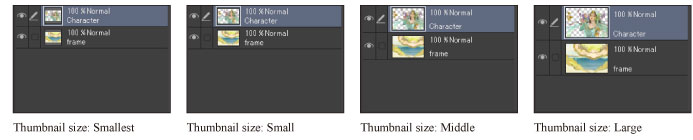
Allows you to select the size of the thumbnails to be displayed on the [Search Layer] palette from [None], [Smallest], [Small], [Medium], [Large] and [Largest].
Thumbnail display settings
Allows you to select the area to be displayed in the thumbnail on the [Search Layer] palette.
|
Show whole canvas |
Display the entire canvas in the thumbnail. |
|
Show only layer area |
Display only the drawn area of the layer in the thumbnail. |
|
Display transparent area |
Displays the transparent area of the layer in the thumbnail. |
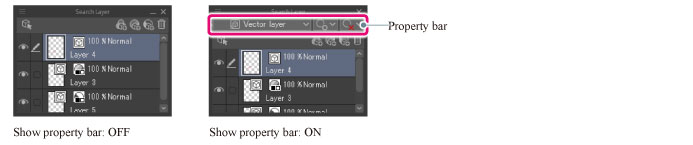
Show property bar
When turned on, displays the property bar of the [Search Layer] palette.
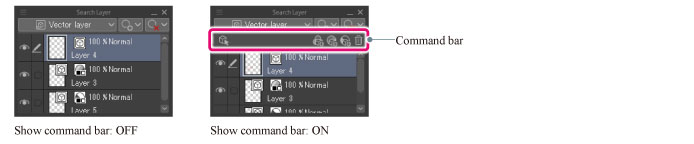
Show command bar
When turned on, displays the command bar of the [Search Layer] palette.
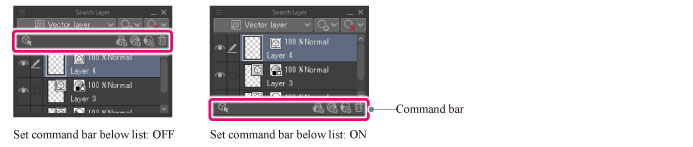
Set command bar below list
When turned on, displays the command bar of the [Search Layer] palette below the [Layer list].
When turned off, displays the command bar of the [Search Layer] palette above the [Layer list].
Hide search layer palette
Hides the [Search Layer] palette.
|
|
To show the Search Layer palette again, select the palette from the [Window] menu > [Search Layer]. If you are using a Smartphone, tap the icon on the palette bar. |