


Disable keyframe editing
Turning off [Enable keyframes on this layer] on a layer folder or track disables keyframe editing.
|
|
For 2D camera folder tracks or audio tracks, you cannot disable edits made to these keyframes. |
1Select the track
Select the track you wish to disable keyframe edits from the Timeline palette.
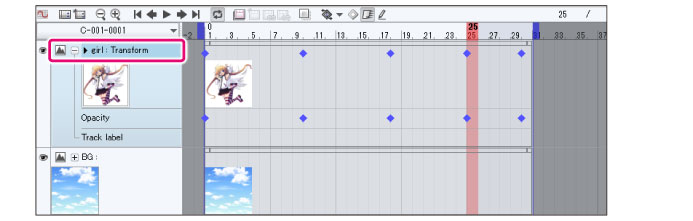
2Disable keyframes
Click [Enable keyframes on this layer].
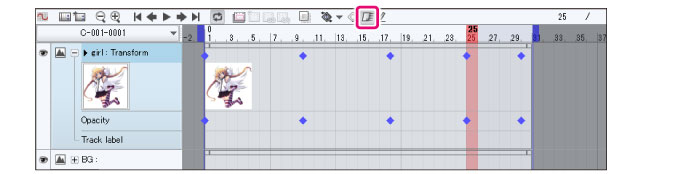
3Switch to keyframe settings
If changes made to the track are deleted, the keyframes in the Timeline palette will be hidden.
[Transform] and [Opacity] from the track name on the Timeline palette will also be hidden.
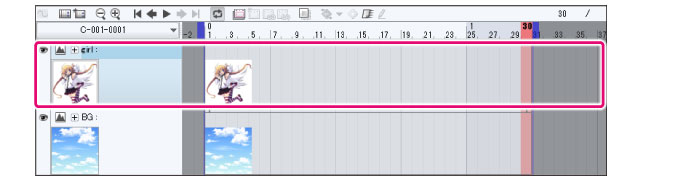
The lock icon on the layers in the Layer palette will be hidden.

|
|
·When you turn on [Enable keyframes on this layer] again, the preserved settings from when you turned it off return, the keyframes will display in the Timeline palette and layer transformations will be restored. ·If you transform a layer or change its opacity while [Enable keyframes on this layer] is turned off, these will not be in effect if you turn [Enable keyframes on this layer] back on. |