


Navigator Palette Menu
This section describes the functions included in the menu that is displayed when you click [Show Menu] on the upper left corner of the Navigator palette.

Rotate/Invert
Canvases can be rotated and flipped.
|
Reset Rotation |
Resets the display angle of the image displayed on the canvas window to the original angle (0 degrees). |
|
Rotate 90 |
Rotates the view by 90 degrees. |
|
Rotate 180 |
Rotates the view by 90 degrees. |
|
Rotate 270 |
Rotates the view by 90 degrees. |
|
Flip Horizontal |
Reverses the view horizontally. |
|
Flip Vertical |
Reverses the view vertically. |
|
Rotate Left |
Rotates the view to the left by a certain angle. |
|
Rotate right |
Rotates the view to the right by a certain angle. |
|
|
The step by which the view will rotate by [Rotate Left] or [Rotate Right] is configured by [Angle] in the [Preferences] dialog box > [Canvas]. For details, see "Canvas". |
Zoom in
When clicked, zooms in the image displayed on the canvas window.
|
|
The step by which the view will zoom in is configured by [Scale] on the [Preferences] dialog box > [Canvas]. For details, see "Canvas". |
Zoom out
When clicked, zooms out the image displayed on the canvas window.
|
|
The step by which the view will zoom out is configured by [Scale] on the [Preferences] dialog box > [Canvas]. For details, see "Canvas". |
100%
When clicked, displays the image displayed on the canvas window at 100%.
200%
When clicked, displays the image displayed on the canvas window at 200%.
Fit to Screen
When clicked, displays the image on the canvas in such size as to fit it completely in the current window. The size of the image does not change in conjunction with that of the window.
Reset display
Resets the position, angle, reversed state of the view, and displays the entire view.
Fit to navigator
When clicked, displays the image on the canvas in such size as to fit it completely in the window. The size of the image changes in conjunction with that of the window.
For details, see "Fit to navigator".
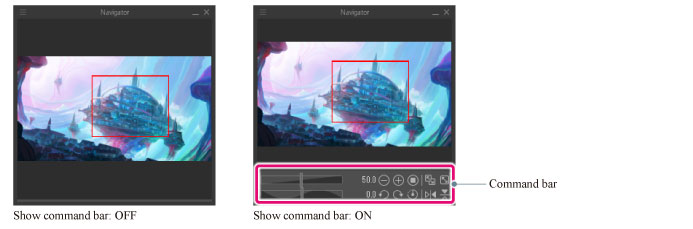
Show command bar
When turned on, displays the command bar of the Navigator palette.
Hide navigator palette
Hides the Navigator palette.
|
|
To show the Navigator palette again, select the palette from the [Window] menu. If you are using a Smartphone, tap the icon on the palette bar. |