


All Sides View Palette [EX]
You can also view 3D materials from four directions at the same time using the All Sides View palette. This section explains how to configure 3D materials using the All Sides View palette. For example, you can adjust the position and pose of a character while viewing from the All Sides View palette.
1Select the 3D material
Select [Object] of the [Operation] tool, then click the 3D material to edit.
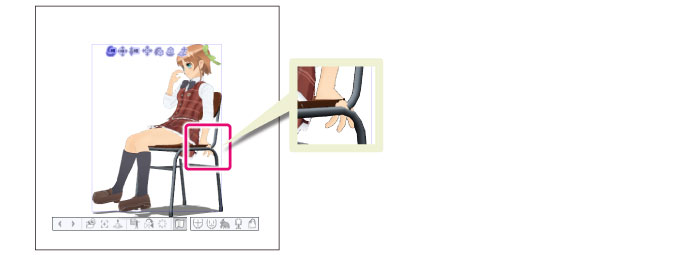
2Adjusting the Display of the All Sides View Palette
You can zoom into parts that you want to check in the flat-plane views in the All Sides View palette.
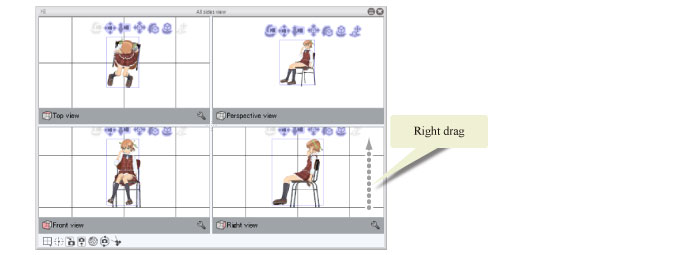
(1) Right-click and drag the mouse downward to zoom in.
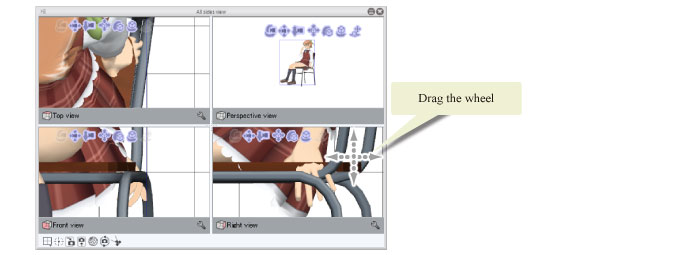
(2) Next, hold down the mouse wheel and drag to adjust the position.
|
|
·For how to change the display of the All Sides View palette, see "Changing the All sides View Display". ·Click [View window layout] on the All Sides View palette to change the direction of the flat-plane views shown on the All Sides View palette. ·The view of the All Sides View palette can also be changed using the movement manipulators on the All Sides View palette. |
3Editing a 3D material
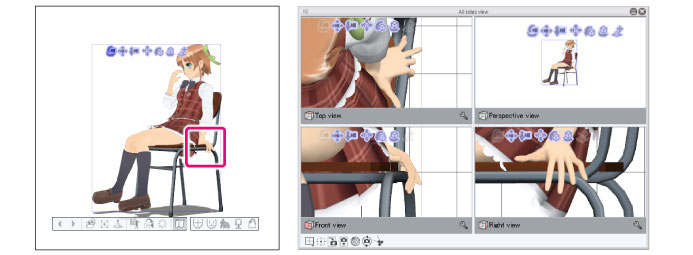
It is possible to edit the layout of a 3D material while viewing it in the All Sides View palette.
|
|
·3D materials can be edited with the mouse in the All Sides View palette the same way as on the canvas. ·You can change the position of the camera and focal point in the All Sides View palette. For details, see "Changing the Camera Position". |