


Fix vanishing point
The [Perspective ruler] sub tool of the [Ruler] tool allows you to fix a vanishing point.
1Select the sub tool
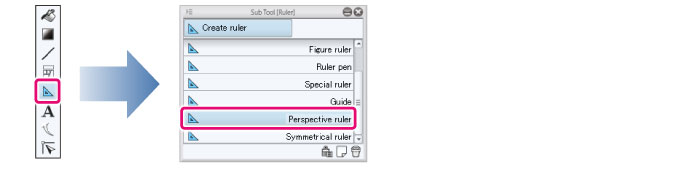
Select the [Ruler] tool and select [Perspective ruler] from the Sub Tool palette.
|
|
The initial configuration of the sub tools has been changed from Ver.1.5.6. The initial configuration of the sub tools has been changed from Ver.1.6.2 on. For those who are used to a previous version of Clip Studio Paint, this operation is now performed by selecting the [Figure] tool and then selecting [Create ruler] > [Perspective ruler] on the Sub Tool palette. |
2Configure the tool property
In the Tool Property palette, set the process to [Fix vanishing point].

3Fix the vanishing point
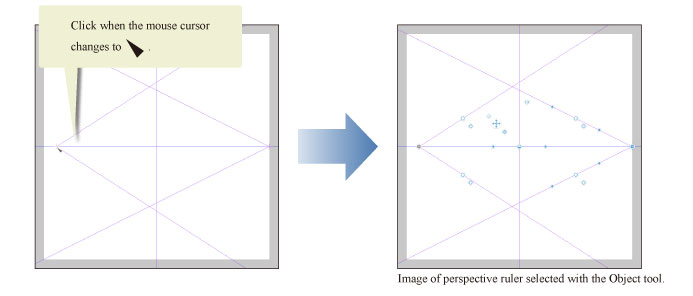
Click the vanishing point or a guide line converging on the vanishing point. The vanishing point is fixed.
|
|
To free a fixed vanishing point, click it again. |