


Motion blur
Select the layer you want to apply a filter to, then select the [Filter] menu > [Blur] > [Motion blur] to open the dialog box. This filter blurs the image by averaging the border lines and sharp areas of the image in a specified direction.
|
Applicable layers |
Raster layer (gray) Raster layer (color) |
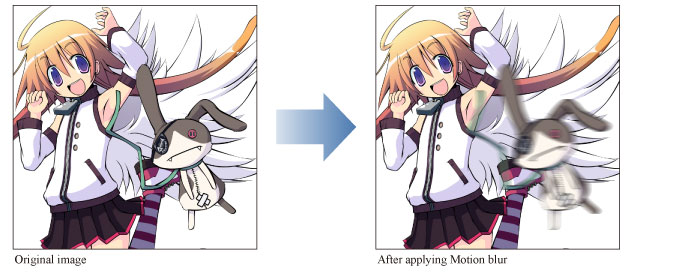
|
|
·To learn how to apply a [Blur] effect to a layer, see "Using the Blur Filters". ·If you create a selection area, the effect will only be applied to the selection area. You cannot change the size of the effect after applying the filter. ·For information on the settings in the [Motion blur] dialog box, please see the following section. |
[Motion blur] Dialog Box
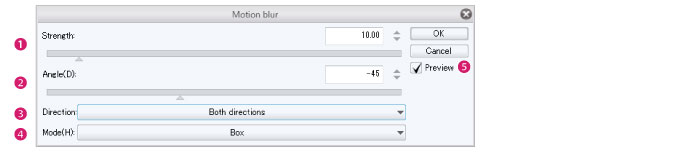
(1) Strength
Sets the Distance of an image.
(2) Angle
Sets the Angle of an image.
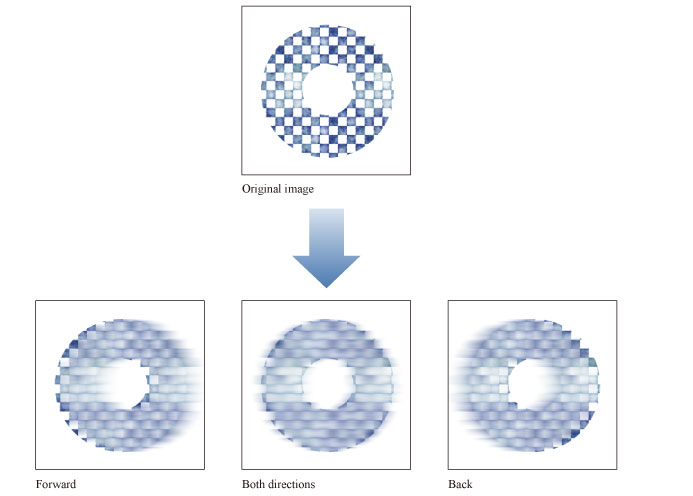
(3) Direction to blur
When selecting the direction you can choose from [Both directions], [Forward], and [Backward].
(4) Mode
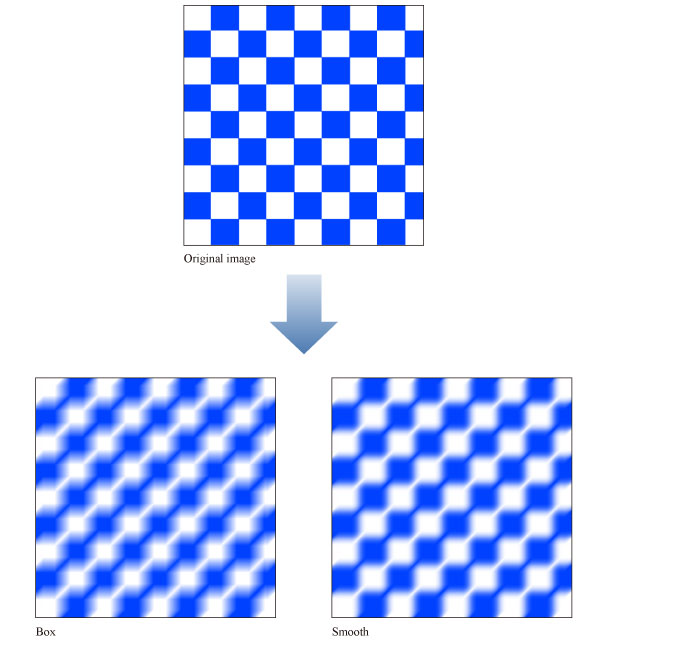
You can select [Box] and [Smooth] from Mode.
|
Box |
Averages the values of each pixel and its surrounding pixels. |
|
Smooth |
Assigns more weight to central pixels and averages the values of pixels. |
(5) Preview
Turn this on to preview the results on the canvas.