


Snapping to a Perspective Ruler
This section describes how to snap to a perspective ruler. To configure, you must have the perspective ruler selected with the [Object] sub tool.
|
|
The colors used here to display the ruler when snap is turned on/off are the default colors. You can change the ruler color from [Ruler/Unit] on the [Preferences] dialog box. For details, see "Preferences [Windows]". |
Switching the Whole Perspective Ruler Snap
Clicking the snap button on the [Whole perspective ruler handle] allows you to turn on/off the snap to the selected perspective ruler.
|
|
You can also switch the snap to the whole ruler by turning on/off [Snap] on the Tool Property palette while the perspective ruler is selected with the [Object] sub tool. |
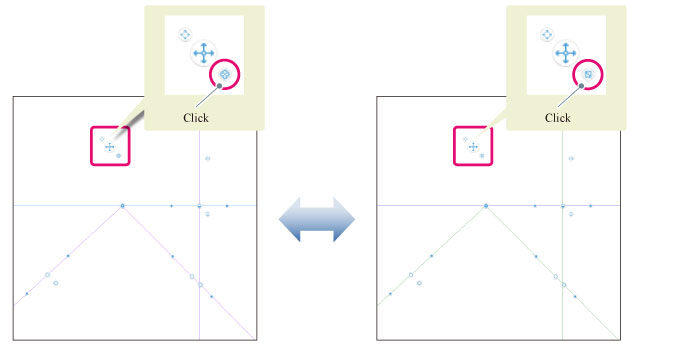
|
Guide line |
Purple (Snap on) |
Green (Snap off) |
|
Orthogonal line to eye level |
Purple (Snap on) |
Green (Snap off) |
|
Eye level |
Light blue (Snap on) |
Blue (Snap off) |