


Rigid bodies
The following settings are displayed when [Rigid body] is turned on in the [Character information] palette.
|
|
Please note that rigid bodies and joints affect other settings. This means that your character may still not move as expected when the settings are changed, or the movement of the rigid body or joint may be affected by the settings of another rigid body. |
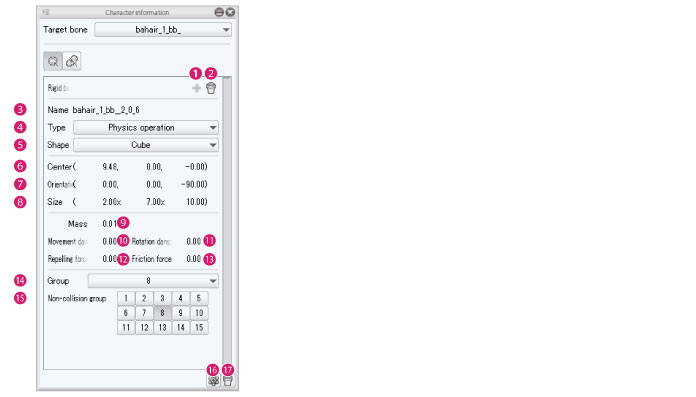
(1) Add rigid body
If no rigid body has been created for the bone selected in [Target bone], you can create a rigid body for that bone.
A rigid body cannot be added for a bone that already has a rigid body.
(2) Delete rigid body
Deletes the rigid body of the bone selected in [Target bone].
(3) Name
The name of the rigid body. Usually displays the name of the bone associated with the rigid body. Click this field to input a name.
(4) Type
Select the type of rigid body.
|
Bone emulation |
The rigid body moves to emulate the associated bone. The rigid body does not move when it collides with another rigid body. |
|
Physics operation |
The rigid body moves freely within the limited range configured in the joint settings. |
|
Match bone position |
The rigid body moves when force is applied, such as when it collides with another rigid body. When a strong force is applied and the rigid body is about to move outside the movement range of the bone, the position of the rigid body is automatically corrected to stay within the bone's movement range. |
(5) Shape
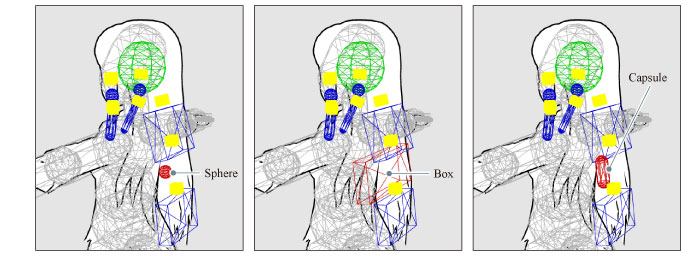
Select the shape of the rigid body. Three rigid body shapes are available: [Sphere], [Cube] and [Capsule].
(6) Center
Adjust the position of the rigid body. Click the numeric value to input a value.
(7) Orientation
Adjust the angle of the rigid body. Click the numeric value to input a value.
(8) Size
Adjust the size of the rigid body. Click the numeric value to input a value.
(9) Mass
Set the mass of the rigid body. Click this field to input a numeric value. When [Physics operation] or [Match bone position] causes a collision between multiple rigid bodies, the rigid body with the lower mass is affected more strongly.
(10) Movement damping
Creates a slight delay in movement speed when a rigid body moves. Click this field to input a numeric value. A value from 0 to 1 can be input. The larger the value, the smaller the movement and the shorter the movement time will be.
(11) Rotation damping
Creates a slight delay in rotation speed when a rigid body moves. Click this field to input a numeric value. A value from 0 to 1 can be input. The larger the value, the smaller the movement and the shorter the movement time will be.
(12) Repelling force
Set how strongly the rigid body rebounds when it comes into contact with other rigid bodies. Click this field to input a numeric value. The larger the value, the more strongly the rigid body rebounds.
(13) Friction force
Set the resistance created by friction when the rigid body rubs against another rigid body. Click this field to input a numeric value. The higher the value, the greater the resistance created by friction and the slower the movement will be.
(14) Group
Set groups of rigid bodies. Select a number from the pull down menu.
Dividing rigid bodies into groups makes it possible to add effects such as adjustments without causing collisions between particular rigid bodies. Multiple rigid bodies (bones) can be set together in a group.
(15) Non-collision group
Set a group that you do not want to collide with the selected group.
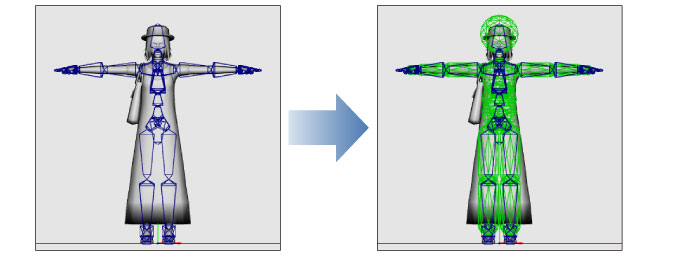
(16) Add rigid bodies to standard bones
Adds multiple rigid bodies and joints to the bones within a part.
For example, if [Physics settings] is selected in a [Body parts folder] in the [Character configuration] palette, rigid bodies and joints are set for all bones in that body part.
(17) Delete
Deletes multiple rigid bodies and joints from the bones within a part.
For example, if [Physics settings] is selected in a [Body parts folder] in the [Character configuration] palette, all rigid bodies and joints in that body part are deleted.