


Joints
The following settings are displayed when [Joint] is turned on in the [Character information] palette.
|
|
Please note that rigid bodies and joints affect other settings. This means that your character may still not move as expected when the settings are changed, or the movement of the rigid body or joint may be affected by the settings of another rigid body. |
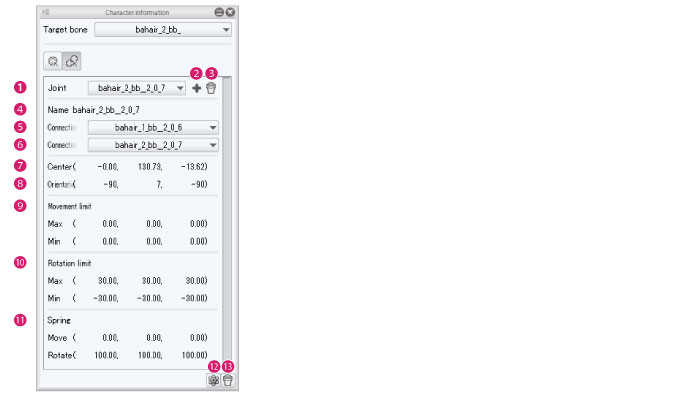
(1) Joint
If the bone (rigid body) selected in [Target bone] has multiple joints, select the joint for which you want to configure the settings.
(2) Add joint
Add a joint to a character. Select a rigid body as the [Connection origin] and a rigid body as the [Connection destination] and click [Add joint] to create a joint.
(3) Delete joint
Deletes the joint selected in [Joint].
(4) Name
Set a name for the joint. Click this field to input a joint name.
(5) Rigid body as connection origin
Set a rigid body as the connection origin. Select a rigid body name from the pull down menu.
(6) Rigid body as connection destination
Set a rigid body as the connection destination. Select a rigid body name from the pull down menu.
(7) Center
Adjust the position of the joint. Click the numeric value to input a value.
(8) Orientation
Adjust the orientation of the joint. Click the numeric value to input a value.
The [Rotation limit] is based on the numeric value input for [Orientation].
(9) Movement limit
Set a movement limit for the joint. Click the numeric value to input a value. A [Max] and [Min] can be set.
(10) Rotation limit
Set a rotation limit for the joint. Click the numeric value to input a value. A [Max] and [Min] can be set.
(11) Spring
Add spring force to the joint.
|
Move |
Set the force with which the joint returns when the spring is pulled. Click this field to input a numeric value. |
|
Rotate |
Set the force with which the joint returns when the spring is rotated. Click this field to input a numeric value. |
(12) Add rigid bodies to standard bones
Adds multiple rigid bodies and joints to the bones within a part.
For example, if [Physics settings] is selected in a [Body parts folder] in the [Character configuration] palette, rigid bodies and joints are set for all bones in that body part.
(13) Delete
Deletes multiple rigid bodies and joints from the bones within a part.
For example, if [Physics settings] is selected in a [Body parts folder] in the [Character configuration] palette, all rigid bodies and joints in that body part are deleted.