


Camera path/Camera
Adjust settings for the display color and display method of the camera path for layers and 2D camera folders.
|
|
Show or hide the camera path by selecting the [Animation] menu > [Show camera path]. |
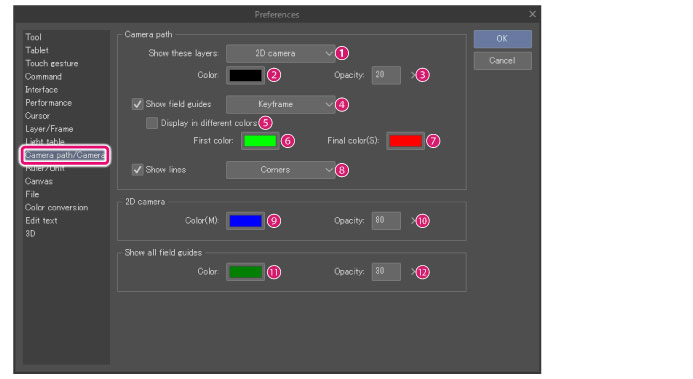
Camera path
(1) Show these layers
You can choose whether to show the camera path on all 2D camera folder or on the current editing layers.
|
Editing layers |
The camera path will be shown for the currently selected layers in the [Layer] palette. In order to display the camera path, the layers must have keyframes. |
|
2D camera |
The camera path will be show for all visible 2D camera folders. However, the camera path will not be shown for hidden 2D camera folders. |
(2) Color
Set the display color of the camera path. Click the color indicator to open the [Color settings] dialog box.
|
|
For details on the [Color settings] dialog box, see "Advanced settings of color Dialog Box". |
(3) Opacity
Set the opacity of the camera path.
(4) Show field guides
When turned on, the camera frames (field guides) for the layers set in [Show these layers] will be shown. These field guides can be selected.
|
Keyframe |
Only field guides set with keyframes will be displayed. |
|
All frames |
All field guides will be displayed. |
(5) Display in different colors
When turned on, the first frame will be shown in the color set as the [First color], and the last frame will be shown in the color set as the [Last color]. The frames in between are displayed as a gradient between the first color and the last color.
When turned off, all frames will be shown in the color set under [Camera path].
(6) First color
Set the color of the frame displayed first. Click the color indicator to open the [Color settings] dialog box.
|
|
For details on the [Color settings] dialog box, see "Advanced settings of color Dialog Box". |
(7) Final color
Set the color of the frame displayed last. Click the color indicator to open the [Color settings] dialog box.
|
|
For details on the [Color settings] dialog box, see "Advanced settings of color Dialog Box". |
(8) Show lines
When turned on, lines will show the movement of the camera frames for the layers set in [Show these layers]. The option [Corners] will show lines connecting the corners of the field guides, while [Center of rotation] will show a line connecting the center point of the field guides.
|
|
If an image material layer with free transform settings is selected, the camera path of the [Center of rotation] is not displayed. |
2D camera
(9) Color
Set the display color of the 2D camera. Click the color indicator to open the [Color settings] dialog box.
|
|
For details on the [Color settings] dialog box, see "Advanced settings of color Dialog Box". |
(10) Opacity
Set the opacity of the 2D camera.
Show all field guides
(11) Color
Set the display color of all field guides for the selected frame. Click the color indicator to open the [Color settings] dialog box.
|
|
For details on the [Color settings] dialog box, see "Advanced settings of color Dialog Box". |
(12) Opacity
Set the opacity for all field guides.