


Light table
Set preferences for light table layers. Light table layers are cels and layers that are registered in the [Animation cel] palette.
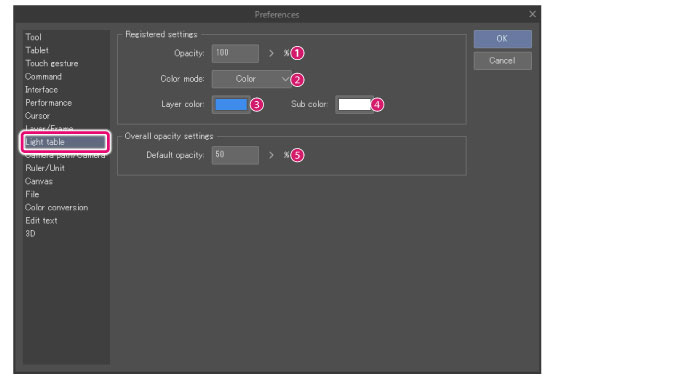
Registered settings
Set how cels or layers appear when first registered to the [Animation cel] palette.
|
|
You can change how light table layers are displayed in the [Animation cel] palette. In [Preferences], you can set the typical display settings, while in the [Animation cel] palette, you can configure detailed settings for work projects. For details, see "Functions of Animation Cels Palette". |
(1) Opacity
Set the opacity of light table layers.
(2) Color mode
Set the display colors for light table layers.
|
Color |
Cels and layers are displayed in their original colors. |
|
Half color |
The original color of cels and layers is combined with the color specified in [Layer color]. |
|
Monochrome |
The cel and layer colors are converted to grayscale, with the selected layer color used for black, and the selected sub color used for white. |
(3) Layer color
Set the display color when [Half color] or [Monochrome] is selected as the display mode. Click the color indicator to open the [Color settings] dialog box. When using the [Monochrome] display mode, the layer color will be used in place of black.
|
|
For details on the [Color settings] dialog box, see "Advanced settings of color Dialog Box". |
(4) Sub color
Set the display color to be used in place of white when [Monochrome] is selected for [Color mode]. Click the color indicator to open the [Color settings] dialog box.
|
|
For details on the [Color settings] dialog box, see "Advanced settings of color Dialog Box". |
Overall opacity settings
Set the opacity of all light table layers registered in the [Animation cels] palette.
(5) Default opacity
Set the default opacity for light table layers. This applies to all light table layers registered to the [Animation cels] palette.