


Wave
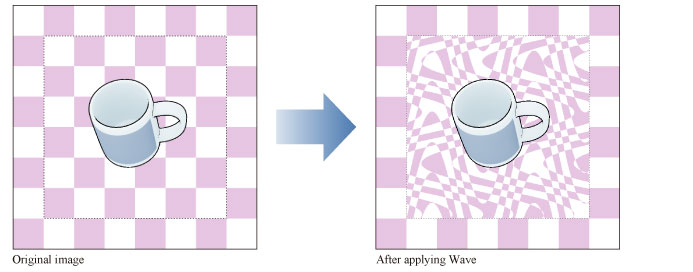
Select the layer you want to apply a filter to, then select the [Filter] menu > [Distort] > [Wave] to open the dialog box. This distorts the image by converting the image coordinates to a wave shape.
|
Applicable layers |
Raster layer (color) Raster layer (gray) Raster layer (monochrome) |
|
|
·To learn how to apply a [Distort] effect to a layer, see "Using the Distort Filters". ·If you create a selection area, the effect will only be applied to the selection area. You cannot change the size of the effect after applying the filter. ·For information on the settings in the [Wave] dialog box, please see the following section. |
[Wave] Dialog Box
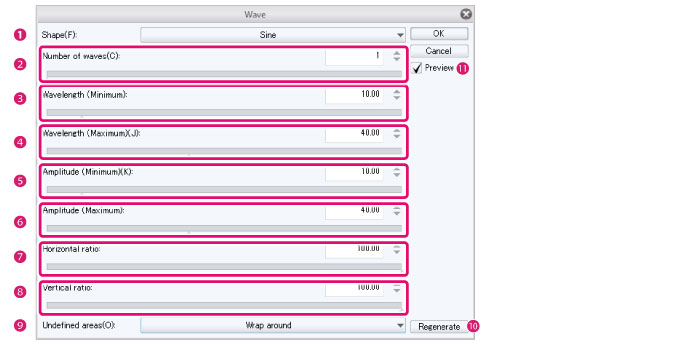
(1) Shape
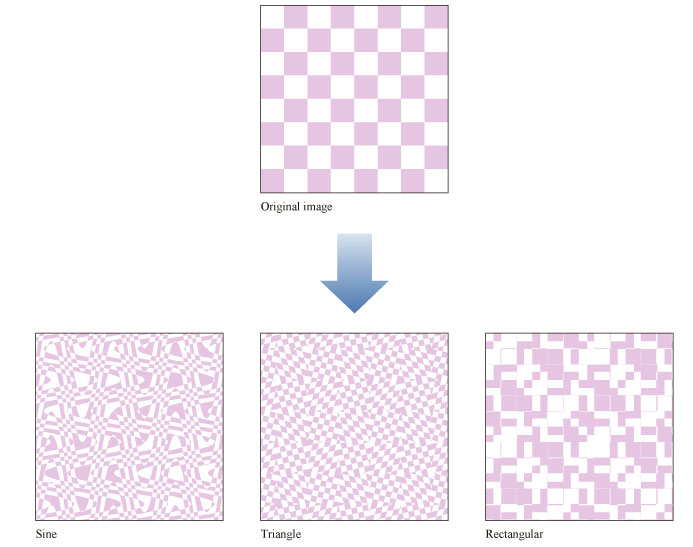
Select the method to distort the image.
|
Sine |
Converts the coordinates of the image to a sine wave (a wave with a cyclic transformation). |
|
Triangle |
Converts the coordinates of the image to a triangular wave. |
|
Rectangular |
Converts the coordinates of the image to a rectangular wave. |
(2) Number of waves
Enter the number of waves.
(3) Wavelength (Minimum)
Set the minimum distance between the highest points of the waves.
(4) Wavelength (Maximum)
Set the maximum distance between the highest points of the waves.
(5) Amplitude (Minimum)
Set the minimum amplitude of the wave shape.
(6) Amplitude (Maximum)
Set the maximum amplitude of the wave shape.
(7) Horizontal ratio
Set the horizontal ratio of the amplitude.
(8) Vertical ratio
Set the vertical ratio of the amplitude.
(9) Undefined areas
Select the process for the area of the image that is outside the wave area.
|
Wrap around |
Fills the edges of the image using the image on the opposite edge. |
|
Repeat edge pixels |
Fills the edges of the image with the drawing color. |
(10) Regenerate
Regenerates the wave shape according to the settings in the dialog box.
|
|
Clicking [Regenerate] regenerates the wave shape by selecting random values between the minimum and maximum values for [Wavelength] and [Amplitude]. |
(11) Preview
Turn this on to preview the results on the canvas.