


Tonal Correction layer (Color balance)
Select the [Layer] menu > [New Correction Layer] > [Color balance] to create a new layer for adjusting the color of the image by editing the RGB balance.
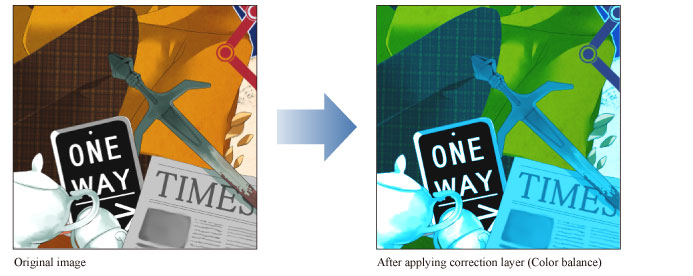
|
|
·For details on how to create a Tonal Correction layer, see "Creating a tonal correction layer". ·For information on how to edit a Tonal Correction layer, see "Changing the area of a tonal correction layer". ·For information on the settings in the [Color balance] dialog box, please see the following section. |
[Color balance] Dialog Box
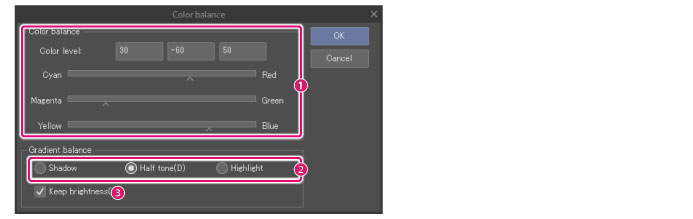
(1) Color balance
Adjust the color balance of the image by using the sliders. You can move the three sliders left and right to adjust the balance of cyan and red, magenta and green, and yellow and blue.
The value of each slider is displayed in [Color level]. From left to right, these show the current values of [Cyan - Red], [Magenta - Green] and [Yellow - Blue]. You can also directly input values in these fields.
(2) Gradient balance
Select from [Shadow], [Half tone] and [Highlight] to adjust the balance of the selected level. You can adjust the color balance at each level separately.
(3) Keep brightness
Keeps the same level of brightness when the gradient balance is adjusted.