


Tonal Correction layer (Tone curve)
Select the [Layer] menu > [New Correction Layer] > [Tone Curve] to create a new layer for adjusting the brightness of the image with a graph.
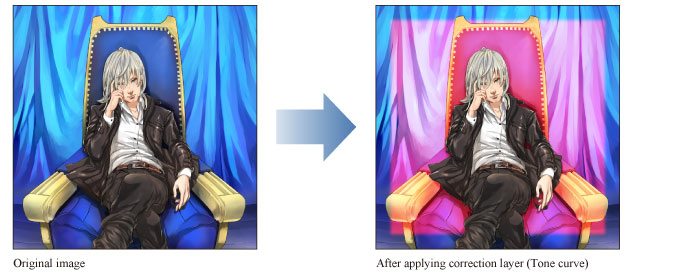
|
|
·For details on how to create a Tonal Correction layer, see "Creating a tonal correction layer". ·For information on how to edit a Tonal Correction layer, see "Changing the area of a tonal correction layer". ·For information on the settings in the [Tone Curve] dialog box, please see the following section. |
[Tone Curve] Dialog Box
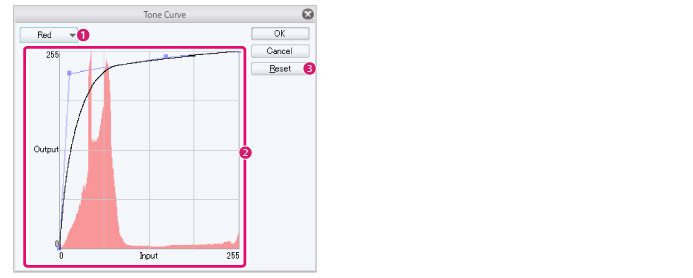
(1) Channel
Select from [RGB], [Red], [Green] and [Blue] channels to adjust brightness.
(2) Tone curve
A graph to adjust the contrast of the image. Drag the control point to adjust.
The horizontal axis of the graph is the "Input" value (original brightness) and the vertical axis is the "Output" value (brightness after adjustment).
|
|
·This graph displays the volume of the dark areas (left side) and bright areas (right side) as mountain-like peaks. Adjust the tone curve while checking the balance of the original image in the histogram. ·Click on the graph to create a new control point. ·To delete a control point, drag it outside of the graph. |
(3) Reset
Reset the image to the original state.