Registering a Layer as Material
To register a layer from the Layer palette or Search layer palette as a material, proceed as follows.
|
|
When multiple layers are selected and registered, they are registered to the Material palette with the layer structure kept. |
1Select the layer
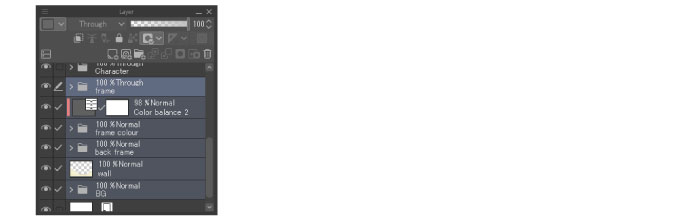
On the Layer palette or Search Layer palette, select the layer to convert into a material.
|
|
Creating a selection registers the drawing in the selected area to the Material palette. If there is no selection, the drawing on the canvas will be registered to the Material palette. |
2 Select the command
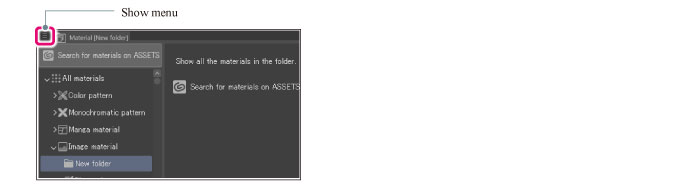
Click [Palette menu] on the Material palette, and select [Register image as Material].
|
|
·You can also select command from [Edit] menu > [Register Material] > [Image]. ·An image can also be registered as material by dragging and dropping the selected layer to [Material list] in the Material palette. When registered in this way, the [Material property] dialog box does not display. |
3Configure the material
The [Material property] dialog box will open. Configure the settings for the material on the dialog box.
|
|
For details on the [Material property] dialog box, see "Material property Dialog Box [PRO/EX]". |
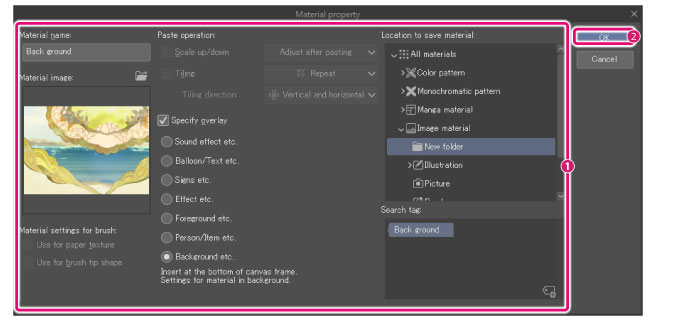
(1) You can configure settings such as name, content, paste operation, save destination, and tag for search for the material.
(2) Click [OK].
4The conversion of image into material is complete
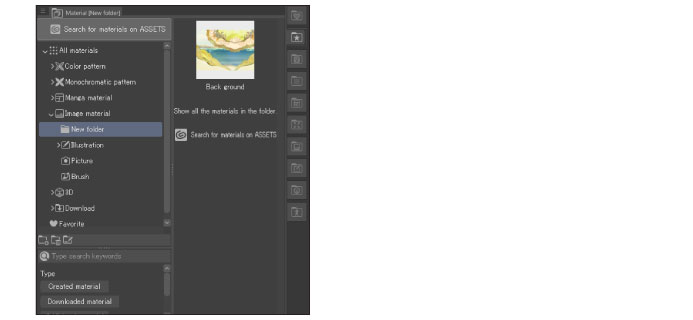
The dialog box closes and the layer material is registered in the Material palette.