


Moving 3D Object Material Parts
If a 3D object material has multiple parts, you can move or rotate specific parts only.
1Selecting 3D Object Materials
Select the 3D object material to move.
|
|
For information on how to select 3D object materials, see "Select the 3D material". |
2Select the part
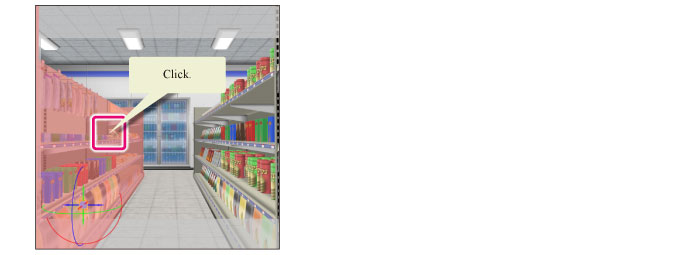
Click the part to move or rotate. The selected part is displayed in red.
|
|
·You can also select parts from the Object list in the Tool Property or Sub Tool Detail palettes. ·If you cannot select the parts of a 3D material, selection may be disabled for that 3D material. For information on selection settings, see "Toggling selection on 3D materials". You can select parts from the [Object list] regardless of whether selection is disabled or enabled. |
3Move or rotate parts
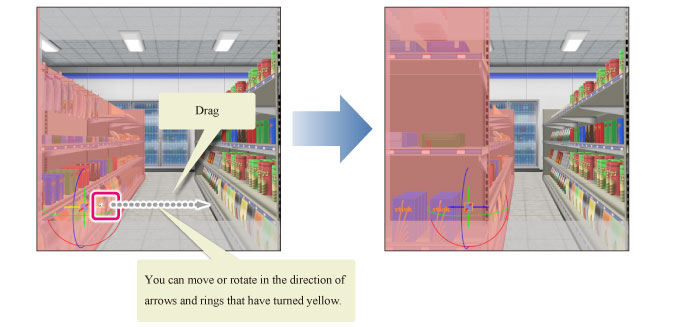
A part manipulator is displayed for the part to be moved. Drag the arrow or ring with the mouse cursor to move or rotate the part in the direction of the arrow or ring.
|
|
·No arrow or controller is displayed for the part manipulator when moving a 3D object compatible with Version 1.5. Drag the part with the [Object] tool to move it up, down, left, right, forward or back. ·You can also move 3D object materials by dragging the controller at the center of the part manipulator. |