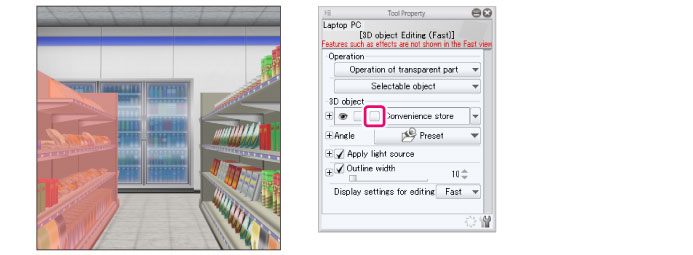
Toggling selection on 3D materials
When selection is enabled, you can select individual parts of 3D materials that contain multiple parts.
When selection is enabled, individual parts of a 3D material can be selected and adjusted. When selection is disabled, individual parts cannot be selected on the canvas. This is useful when making global adjustments to the 3D material.
Here, the 3D material will be set to enable selection.
|
|
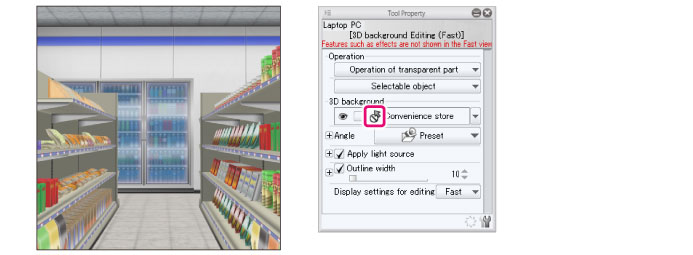
You cannot toggle selection of parts on imported 3D background materials. For information on 3D background materials, see "3D Background Materials". |
1Select the tool
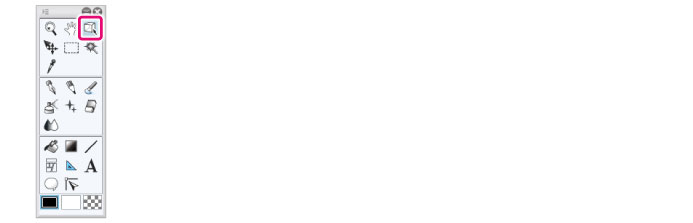
On the Tool palette, select the [Operation] tool.
2Select the sub tool
Open the Sub Tool palette and select [Object].
3Select the 3D layer
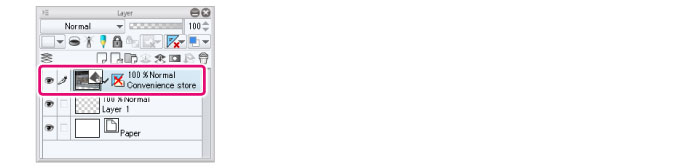
Open the Layer palette and select the 3D layer to edit.
4Change settings
From the Tool Property palette's [Object list], click the "Toggle selection" box of the 3D material of choice.
|
|
·If the material you want to set does not appear in the [Object list], click the icon to the right. This displays the entire [Object list] as a pop-up. ·When using PRO/EX, click [Display object list] on the Object Launcher to display the object list in the Sub Tool Detail palette. The object list can be displayed larger than the Tool Property palette. ·To open or close all of the [Object list] hierarchies, Right click [Object List] and click Show all or Close all from the displayed menu. |
5Toggling selection
Clear the "Disable selection" icon in the Tool Property palette [Object list] to be able to select the materials. Click on the select parts of 3D materials that are set to enable selection.