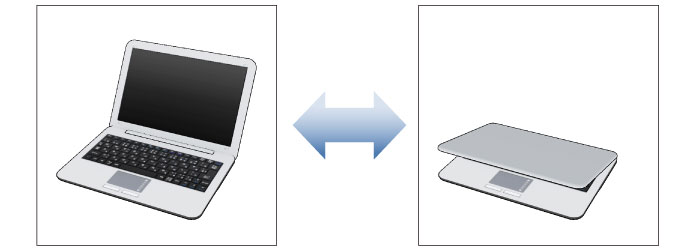
If a 3D object material is selected
Selecting a 3D object material displays the following additional buttons.
|
|
Some of the buttons may not display for 3D layers compatible with Ver 1.5. |
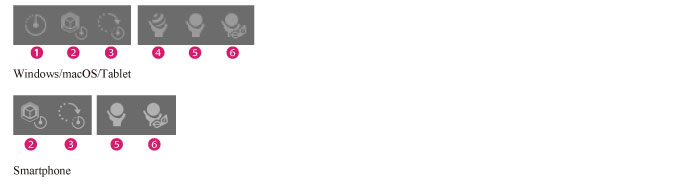
(1) Initial pose [Windows/macOS/Tablet]
If a 3D material has multiple parts, the parts will be set to their default position.
(2) Reset scale
The scale of 3D object materials edited with the Tool Property palette's [Object scale] or the Root manipulator's [Scale] can be reset to their default scale.
(3) Reset Rotation
The rotation of 3D object materials edited with the Movement manipulator or Root manipulator can be reset to their default scale.
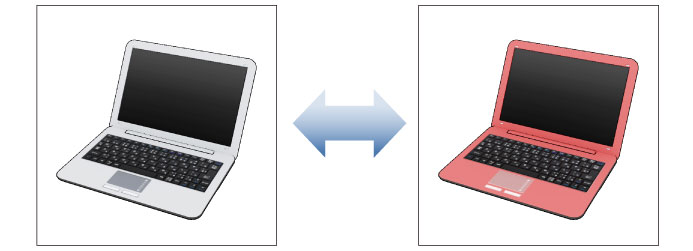
(4) Material [Windows/macOS/Tablet]
Click to display a list of materials. Select the desired material for the selected 3D object material. Selecting a material allows you to change the tone and texture of the 3D object material.
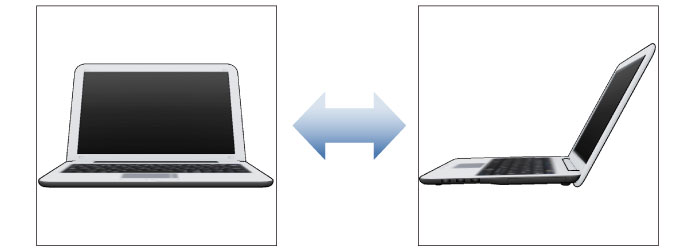
(5) Layout
Click to display a list of layouts for the 3D object material. Select the desired layout for the selected 3D object material. The allocation of 3D object materials can be changed by selecting a layout.
(6) Movable parts
Click to display a list of pose parts set for the 3D object material. A slider can be used to adjust the position of a pose part.