


Select multiple control points
With the [Operation] > [Object] tool, select the drawing on the vector layer to display the handles and control points for the line.
To select multiple control points, you can either hold the Shift key and select each point, or drag to select control points if the setting is turned on in the [Sub Tool Detail] palette.
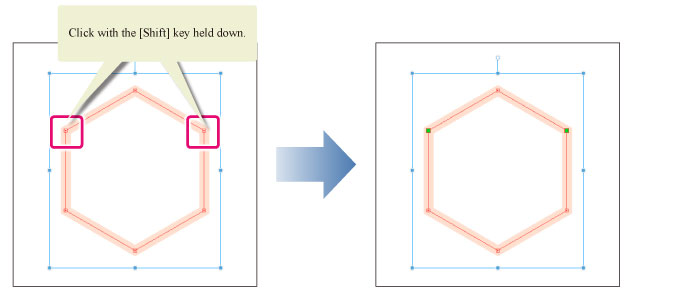
Select multiple items by holding Shift
Consecutively click the control points while holding Shift . This will select multiple control points.
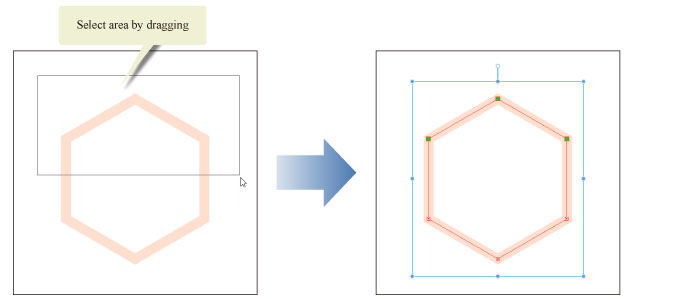
Select multiple items by dragging
Click [Operation of transparent part] in [Object] Sub Tool’s [Tool Property] palette. Turn on [Select area by dragging] and choose [Control point].
Drag on the canvas. The two or more control points inside the dragged area are selected.
|
|
·If [Select area by dragging] is turned on and set to [Object], only object can be selected by dragging. Control points cannot be selected. ·Hold down Shift while dragging to select multiple control points to select consecutive points. ·To select additional control points after selecting multiple control points, hold down the Shift key and click the control points you want to add. |