


Editing with the Correct line Tool
With the [Correct line] tool, you can edit control points and change the line width of vector lines.
Choose the appropriate tool from the [Sub tool] palette.
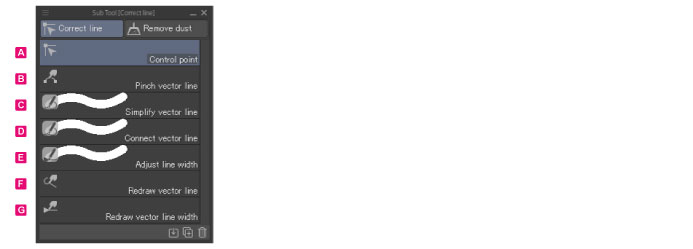
A.Control point
You can move, add, delete and switch corners of control points and adjust line width and opacity of drawn lines. You can select how you will edit control points and lines from the [Tool Property] palette.
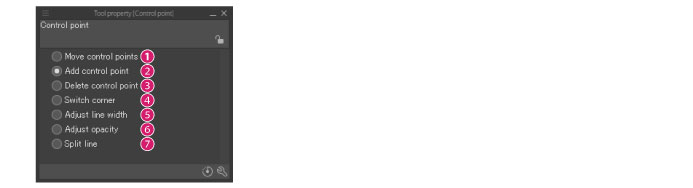
(1) Move control points
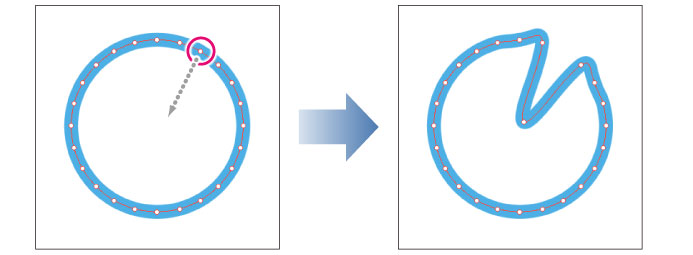
Drag a control point to transform the shape of the line near the control point.
|
|
When [Move control points] is selected, you can do the following for a lines drawn with [Cubic Bezier] selected from [Curve] on the [Tool Property] palette. ·Pressing Alt while dragging a direction point changes the shape of the line and the anchor point into a corner. ·Pressing Space while dragging moves all control points at once. |
(2) Add control point
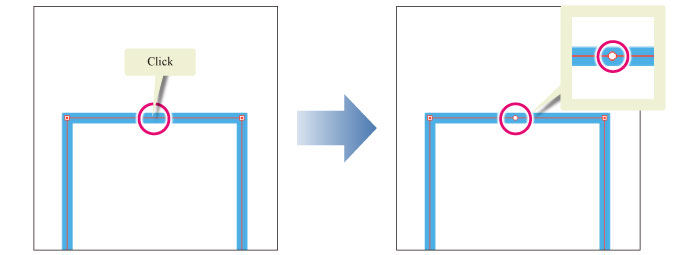
Click the line to add a control point. You can also drag control points to transform the shape of the line near the control point.
Dragging a control point allows you to move it.
|
|
When [Add control point] is selected, you can do the following for a lines drawn with [Cubic Bezier] selected from [Curve] on the [Tool Property] palette. ·Dragging a line adds a anchor point at the start of the drag and a direction point at the end of the drag. The shape of the line changes according to the position of the direction point. ·Pressing Alt while dragging a direction point changes the shape of the line and the anchor point into a corner. ·Pressing Space while dragging moves all control points at once. |
(3) Delete control point
Click a control point to delete it.

(4) Switch corner
Clicking a control point allows you to switch the type of corner at the clicked point. Clocking switches between angled corners and rounded corners.
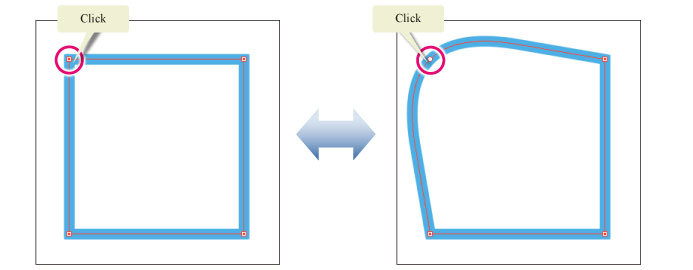
|
|
When [Switch corner] is selected, you can do the following for a lines drawn with [Cubic Bezier] selected from [Curve] on the [Tool Property] palette. ·Dragging an anchor point changes the direction point into a curve. At the same time, the direction point moves to the end position of the drag. ·Dragging a direction point changes the shape of the line and changes the anchor point into a corner. ·Pressing Space while dragging moves all control points at once. |
(5) Adjust line width
Drag a control point to change the width of the line near the control point.
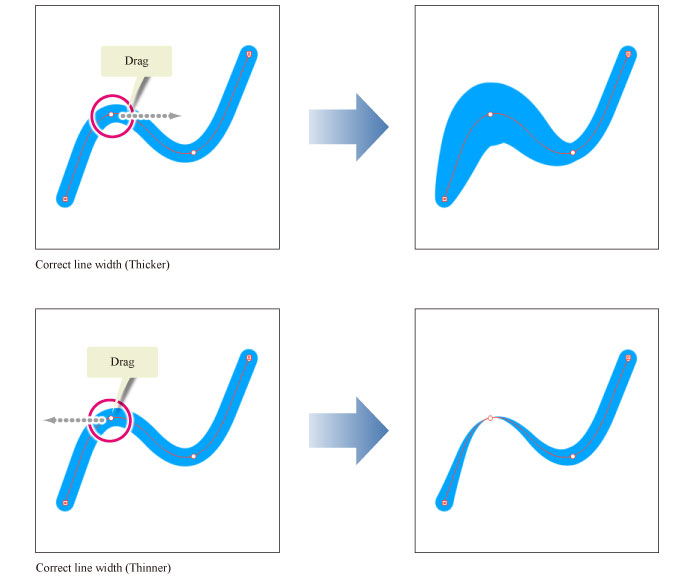
|
|
[Adjust line width] cannot be used to edit the control points of a ruler. |
(6) Correct density
Drag a control point to change the density of the line near the control point.
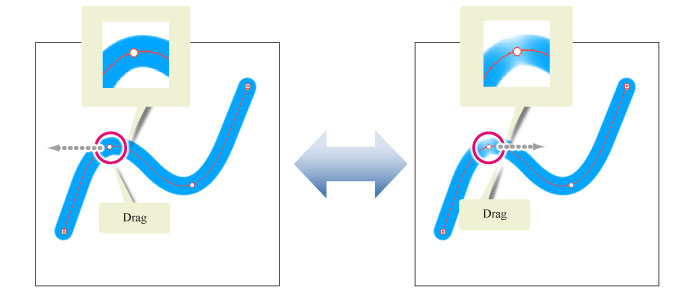
|
|
[Correct density] cannot be used to edit the control points of a ruler. |
(7) Cut line
With this option, you can cut a vector line at the clicked point to divide it into separate lines.
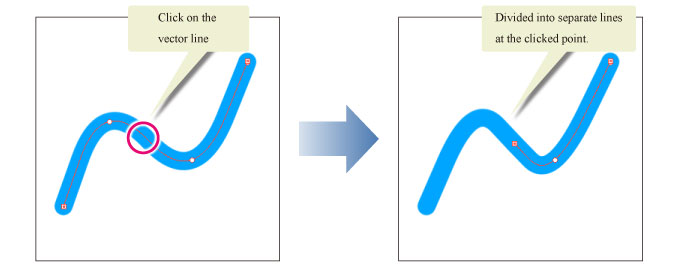
|
|
[Cut line] cannot be used to edit the control points of a special ruler. |
B.Pinch vector line
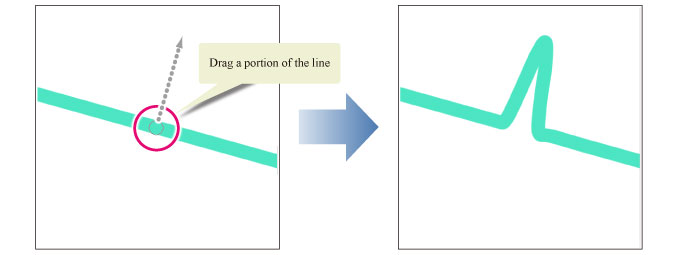
You can transform the line by dragging a portion of the line. Use [Fix end] options on the [Tool Property] palette to select whether to fix the positions of the start point and end point when transforming the line.
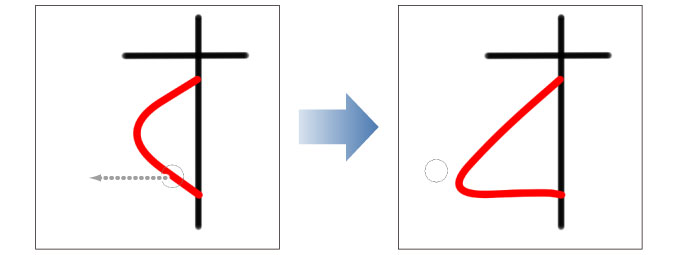
(1) Fix both ends
Fixes the start and end points of the line. The start point and end point will not move when the line is pinched.
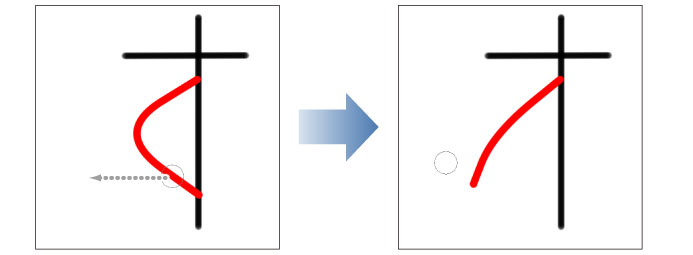
(2) Fix either end
Fixes the opposite end from the point where the line will be reshaped. The end that is fixed will not move when the line is pinched.
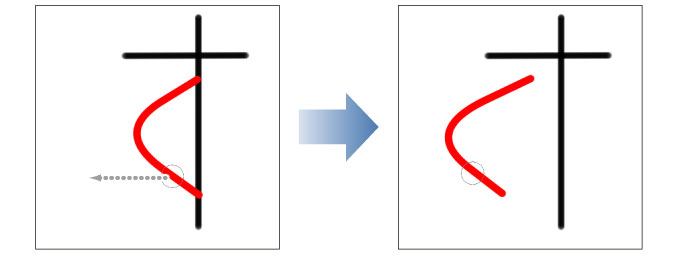
(3) Free both ends
The start point and end point of the line can move. When the line is pinched, the start point and end point may move depending on the pinch level.
C.Simplify vector line
Drag over the line to simplify the line by reducing the number of control points.
|
|
The Tool Property palette's, [Convert curve], allows you to simplify and change curve type at the same time. You can select from [Polyline], [Spline], [Quadratic Bezier], and [Cubic Bezier]. |
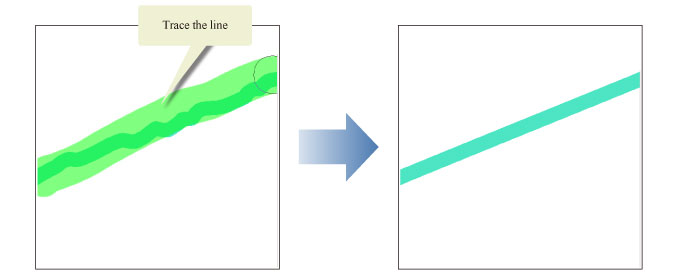
D.Connect vector line
This connects lines that were drawn separately. Drag from the end of one line to the end of another line to connect them.
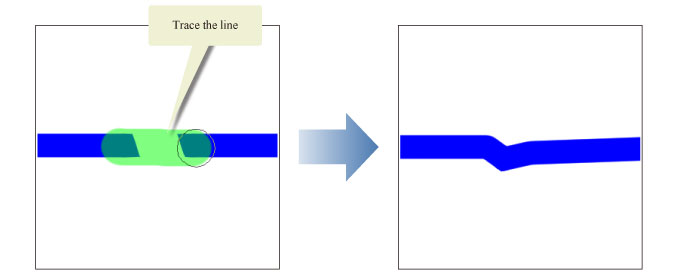
E.Adjust line width
Drag over a line to scale the line width up or down.
On the [Tool Property] palette, you can select how to scale the line width.
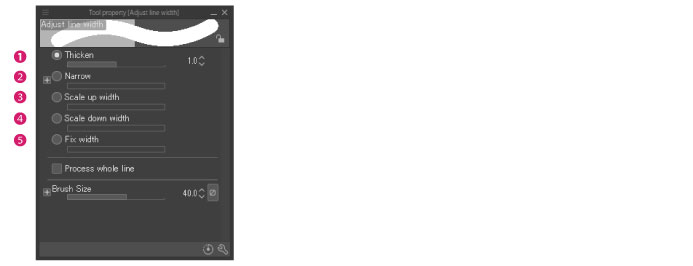
|
(1) Thicken |
Thickens the line width by the specified amount. |
|
(2)Narrow |
Narrows the line width by the specified amount. |
|
(3) Scale up width |
Scales the current line width up by the specified percentage. |
|
(4)Scale down width |
Scales the current line width down by the specified percentage. |
|
(5)Fix width |
Changes the line width to the specified value. |
F.Redraw vector line
With this tool, you can redraw a portion of the line by dragging it.
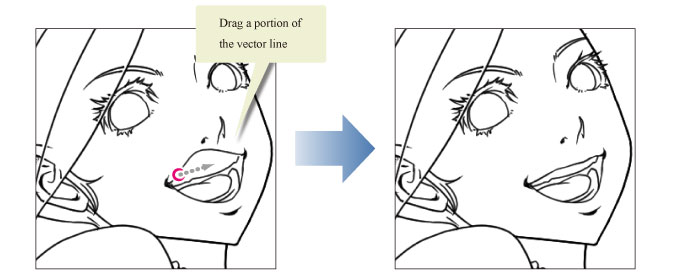
You can set how you want to redraw the line in the [Tool Property] palette.
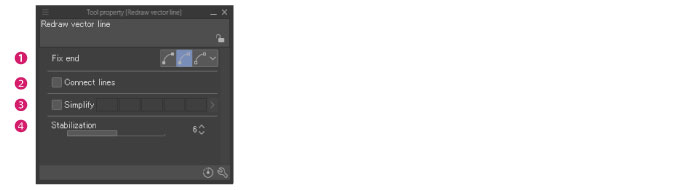
(1) Fix end
Select whether or not and how to fix the starting point and/or end point when transforming a line.
|
Fix both ends |
Fixes the start and end points of the line. The starting point and end point do not move even if the line is redrawn. |
|
Fix either end |
Fixes the opposite end from the point where the line will be reshaped. The end that is fixed does not move even if the line is redrawn. |
|
Free both ends |
The start point and end point of the line can move. |
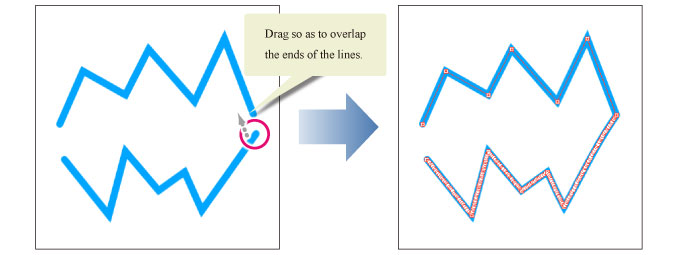
(2) Connect line
When turned on, you can connect two neighboring segments of lines with the same brush tip shape, size, and angle settings. Draw over the ends of both segments when redrawing the line to connect the two segments.
(3) Simplify
When turned on, you can simplify the line by reducing the number of control points. Use the slider to set how many control points to reduce. The larger the value,
the more control points will be removed.

(4) Stabilization
Sets stabilization of lines drawn on the tablet. The larger the value, the smoother the line will be; the smaller the value, the more similar the line will be to the raw input.
G.Redraw vector line width
Allows you to change the line width by dragging over the vector line as if tracing. You can also link the brush size dynamics to [Pen pressure] in the [Tool Property] palette to adjust the line width by adjusting the pen pressure.
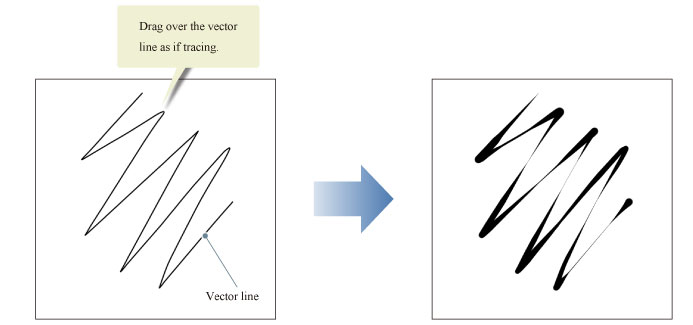
The brush size can be adjusted in the [Tool Property] palette.

(1) Brush size
This sets the drawing size. Use the slider to change the settings. You can also change the setting by using the up and down arrow icons next to the input field. The [Dynamics] button allows you to adjust the tablet settings that affect the brush size.
|
|
For more information on Dynamics, see the "CLIP STUDIO PAINT Tool Setting Guide". |