


Document Window
The [Document] window is an area for displaying and performing operations for models being created.
|
|
Select the [Window] menu → [Document] to switch to the [Document] window. For details, see "Menu" →"Window Menu" →"Document" . |

(1) Tabs for switching between documents
Displays the file names of the models being edited. Clicking the tabs allows you to switch the file or view to edit.
(2) Show / Hide point
Displays/hides the highest point of the 3D character.

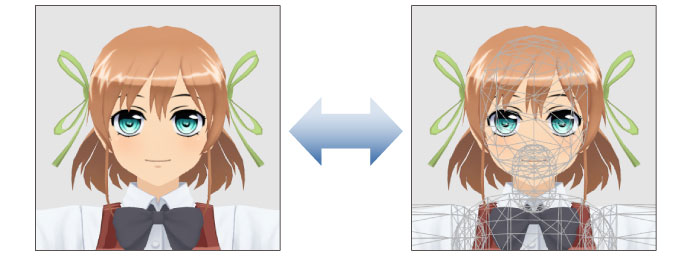
(3) Show / Hide edge
Displays/hides the edge of the 3D character.

(4) Show / Hide normals
Cannot be used.
(5) Show / Hide bone
Displays/hides the bones of the 3D character.

(6) Show / Hide physics object
Displays/hides the physics object for 3D characters where a physics object is set.
(7) Enable / Disable physics operation
If physics operations are enabled for 3D characters where skirt settings or physics operations are set, the settings are applied when the 3D character is dragged.

(8) Document
The area for editing 3D characters.
(9) World coordinate axes
The baseline coordinate axes of the 3D space. There are three axes: the X axis (red), the Y axis (green) and the Z axis (blue).