


Face parts folders
The following settings can be configured in the [Character information] palette when a [Face parts folder] is selected in the [List].
|
|
A [Face parts folder] cannot be edited in the [Character information] palette when it is hidden. |
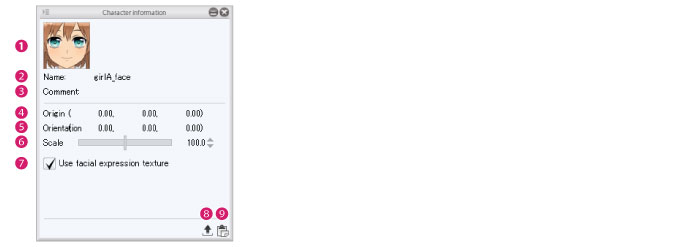
(1) Thumbnail
The thumbnail of the [Face parts folder].
Click the thumbnail to display the [Capture thumbnail] window where a thumbnail can be captured for the part. For information on how to configure this, see "Capturing a Thumbnail" .
(2) Name
Displays the name of the edited part. Double click this field to input a part name. The input name is applied to the [Character configuration] palette.
(3) Comment
A comment about the [Face parts folder] can be set. Click this field to input a comment. Information such as a description of the [Face parts folder] can be entered here.
(4) Origin
Set the [Origin x coordinate], [Origin y coordinate] and [Origin z coordinate] of the [Face parts folder]. The position of face parts can be adjusted by inputting numeric values.
The origin of a [Face parts folder] is displayed by selecting the [Move parts] tool. The [Move parts] tool can also be used to adjust the position of face parts. For details, see "Move parts" .
(5) Direction
Set [Rotate around x axis], [Rotate around y axis] and [Rotate around z axis] for the [Face parts folder]. The angle of face parts can be adjusted relative to the origin by inputting numeric values.
The origin of a [Face parts folder] is displayed by selecting the [Move parts] tool. The [Move parts] tool can also be used to adjust the orientation of face parts. For details, see "Move parts" .
(6) Scale
The size of the [Face parts folder] can be set using the slider.
(7) Use facial expression texture
Turn this on to set the facial expression of a 3D character as a facial expression texture. Using facial expression textures makes it possible to set multiple facial expressions in one [Face parts folder]. Eye and mouth movements can also be set in the texture.
When this is turned off, the texture is stored in the [Surface material information] folder like that of the body and hair. If multiple facial expressions need to be set for 3D characters in this case, a separate [Face parts folder] needs to be set for each facial expression.
|
|
·For information on how to configure the settings of facial expression textures, see "Editing Facial Expressions" . ·[Use facial expression texture] cannot be set if there are multiple [Surface materials] in the [Surface material information folder] of the [Face parts folder]. |
(8) Export PSD file for facial expression settings
When a [Face parts folder] with [Use facial expression texture] turned on is selected, the facial expression texture can be exported in Photoshop document format (extension: psd). For details, see "Exporting Facial Expression Textures" .
(9) Import PSD file for facial expression settings
When a [Face parts folder] with [Use facial expression texture] turned on is selected, facial expression textures can be imported. Photoshop document format (extension: psd) can be imported. For details, see "Importing Facial Expression Textures" .