


Set the leg bone position
Set the leg bones of the 3D character.
1Change the bone settings
Click [Set leg bone position] in the [Navigation area].
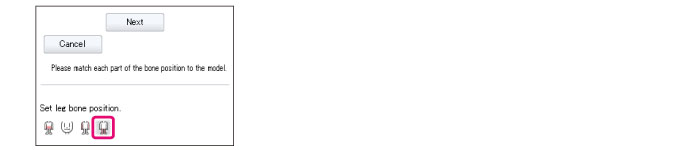
The [Preview area] switches to the screen for setting the leg bones.
|
|
To return to the [Hips], [Head] or [Arm] settings, click [Set hip bone and model position], [Set head bone position] or [Set arm bone position] in the [Navigation area]. Clicking [Cancel] clears all of the settings configured so far. |
2Set the bone position
Align the position of the bone with the 3D character.
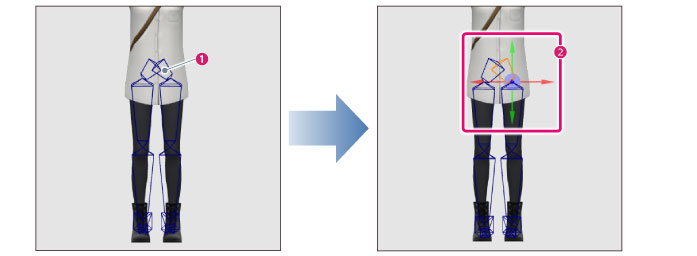
(1) Click the bone at the base of the leg in the [Preview area].
(2) A manipulator is displayed. Drag the arrow of the manipulator with the mouse cursor and align the position of the bones with the 3D character.
|
|
When you set the bones of one leg, the setting is applied to the other leg at the same time. |
3Set the bone angle
Match the angle of the bone with the 3D character.
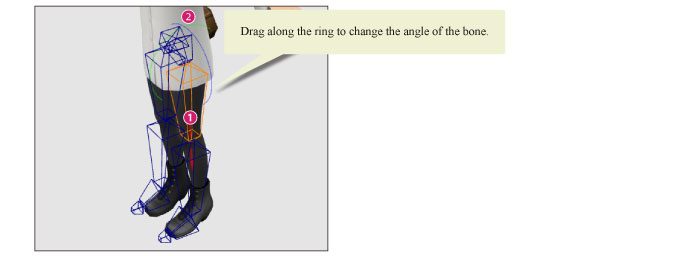
(1) Click the thigh bone in the [Preview area].
(2) A manipulator is displayed. Drag the ring of the manipulator with the mouse cursor to change the angle of the bone. Match the angle of the bone with the 3D character.
4Set the length of the bones
Use the manipulator of the thigh bone to match the length of the thigh bone with the 3D character.
|
|
If the manipulator is not displayed, click the leg bone to display it. |

(1) Drag the arrows of the manipulator with the mouse cursor to change the length of the bone.
(2) Align the bottom of the bone with the knee of the 3D character.
5Adjust the shin bones
Set the angle and length of the shins.
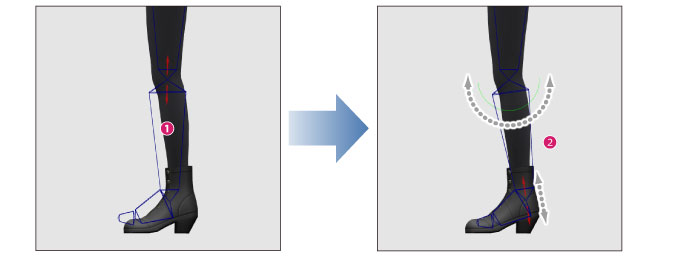
(1) Click the shin bone in the [Preview area].
(2) A manipulator is displayed. Drag the manipulator with the mouse cursor to change the angle and length of the bone. Align the bottom of the bone with the ankle of the 3D character.
6Adjust the foot bones
Set the angle and length of the feet.
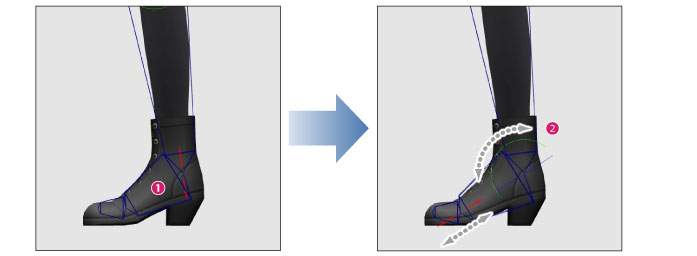
(1) Click the foot bone in the [Preview area].
(2) A manipulator is displayed. Drag the manipulator with the mouse cursor to change the angle and length of the bone. Match the bone with the foot shape of the 3D character.
7Adjust the toe bones
Set the length of the toes.
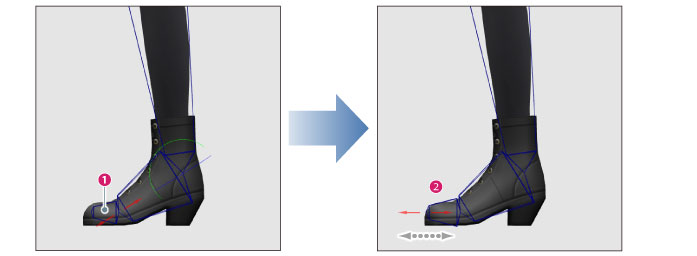
(1) Click the toe bone in the [Preview area].
(2) A manipulator is displayed. Drag the manipulator with the mouse cursor to change the length of the bone. Align the end of the bone with the end of the 3D character's toes.
8Check the position of the bones
Change the camera angle and check the position of the bones from various angles.
If any corrections are needed, readjust the bone positions in the [Preview area].
9Exit the bone settings mode
Click [Next] in the [Navigation area].
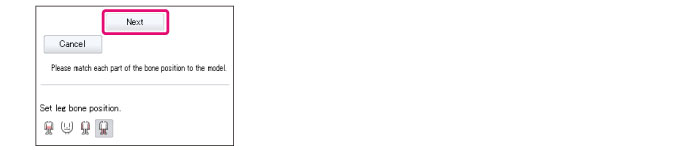
The display switches to the screen for setting the position of the fingers. Next, proceed to "Set the finger position" .