


Changing Textures
[Surface materials] (textures) in [Material panel folders] can be converted to other images.
The following file formats are supported.
|
File formats that can be imported |
BMP, JPG, PNG, TIFF, TGA |
|
|
If you want to keep the original [Surface material], select the [Material panel folder] in the [Object configuration] palette and click [Duplicate node]. The [Material panel folder] containing the original [Surface material] is duplicated. |
1Select a texture
Select the [Surface material] to be converted from the [Object configuration] palette.
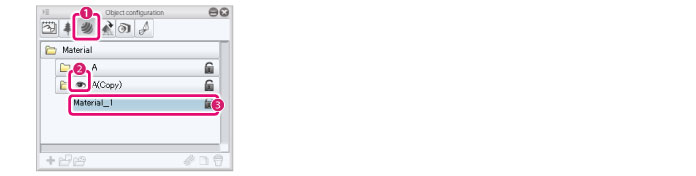
(1) Click [Material] in the group on the [Object configuration] palette.
(2) Display the [Material panel folder] containing the [Surface material] to be converted in the [List].
(3) Select the [Surface material].
2Import a texture
You can import a new texture for the selected [Surface material].
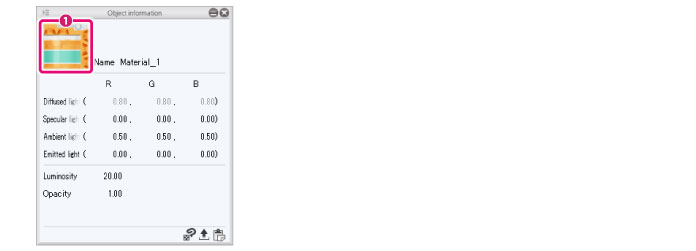
(1) Click [Import texture] in the [Object information] palette. When the dialog box for selecting a file is displayed, select the image file to be used for the texture.
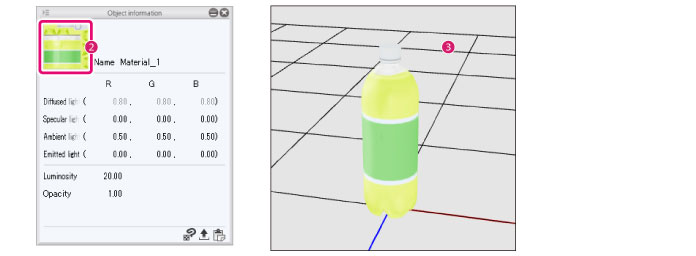
(2) The [Surface material] changes and the new texture is applied to [Import texture] in the [Object information] palette.
(3) The new texture is applied to the 3D object in the [Document] window.
|
|
You can also import a texture by copying the image for the desired texture to the clipboard in software such as an image editing program, then clicking [Paste texture] in the [Object information] palette. |