


Editing Textures in CLIP STUDIO PAINT
If both CLIP STUDIO PAINT and CLIP STUDIO MODELER are installed on your computer, you can start CLIP STUDIO PAINT and edit [Surface materials] (textures) there.
|
|
If you want to keep the original [Surface material], select the [Material panel folder] in the [Object configuration] palette and click [Duplicate node]. The [Material panel folder] containing the original [Surface material] is duplicated. |
1Select a texture
Select the [Surface material] to be edited from the [Object configuration] palette.
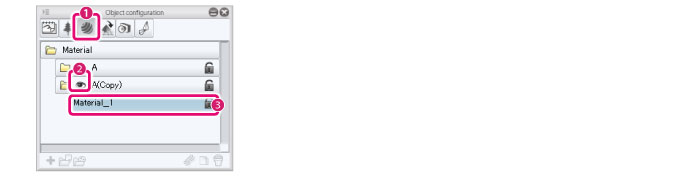
(1) Click [Material] in the group on the [Object configuration] palette.
(2) Display the [Material panel folder] containing the [Surface material] to be converted in the [List].
(3) Select the [Surface material] in the [Material panel folder] to be edited in the list.
2Start CLIP STUDIO PAINT
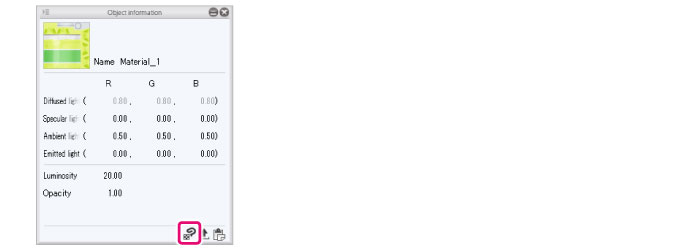
Click [Edit in PAINT] in the [Object information] palette.
3Edit in CLIP STUDIO PAINT
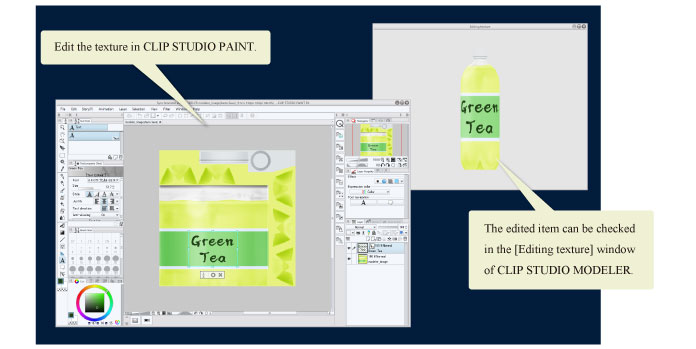
CLIP STUDIO PAINT opens in synchronized edit mode and the texture is displayed on the canvas.
The [Editing texture] window is also displayed.
When you edit a texture in CLIP STUDIO PAINT, the edits are automatically applied in the [Editing texture] window.
|
|
·For instructions on using CLIP STUDIO PAINT, see “CLIP STUDIO PAINT Instruction Manual”. ·If the edits are not applied in CLIP STUDIO PAINT, turn on [Enable Auto Save] in the [File] menu of CLIP STUDIO PAINT. ·If the texture being edited is not displayed in the [Editing texture] window, change the camera angle of the [Editing texture] window. For information on how to change this, see "Setting Camera Angles". ·If the texture is edited with multiple layers in CLIP STUDIO PAINT, the [Surface material] is saved with the layers merged. |
4Exit the editing screen
Exit CLIP STUDIO PAINT or close the window of the [Surface material] being edited in CLIP STUDIO PAINT. CLIP STUDIO MODELER returns to the normal view.