


Polar coordinates
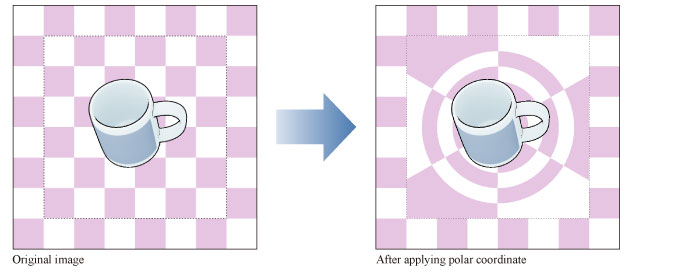
Select the layer you want to apply a filter to, then select the [Filter] menu > [Distort] > [Polar coordinates] to open the dialog box. This distorts the image by converting the image coordinates to polar coordinates or rectangular coordinates.
|
Applicable layers |
Raster layer (color) Raster layer (gray) Raster layer (monochrome) |
|
|
·To learn how to apply a [Distort] effect to a layer, see "Using the Distort Filters". ·If you create a selection area, the effect will only be applied to the selection area. You cannot change the size of the effect after applying the filter. ·For information on the settings in the [Polar coordinates] dialog box, please see the following section. |
[Polar coordinates] Dialog Box

(1) Transformation method
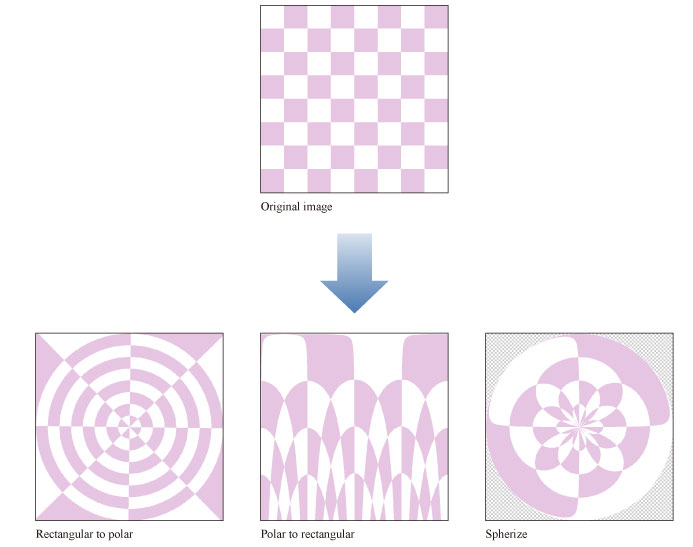
Specify the method for transforming the image.
|
Rectangular to polar |
Converts the coordinates of the image from rectangular coordinates (all axes form a rectangle) to polar coordinates. |
|
Polar to rectangular |
Converts the coordinates of the image from polar coordinates (graph indicated by radii and angles) to rectangular coordinates. |
|
Spherical surface reflection |
Transforms images by making them appear as if they are projected on a spherical surface. |
(2) Preview
Turn this on to preview the results on the canvas.