


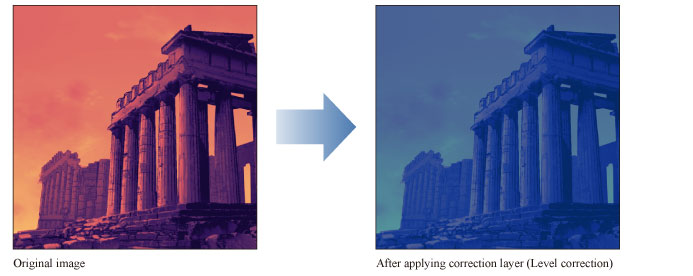
Tonal Correction layer (Level correction)
Select the [Layer] menu > [New Correction Layer] > [Level Correction] to create a new layer for adjusting the brightness of the image with a histogram
|
|
·For details on how to create a Tonal Correction layer, see "Creating a tonal correction layer". ·For information on how to edit a Tonal Correction layer, see "Changing the area of a tonal correction layer". ·For information on the settings in the [Level Correction] dialog box, please see the following section. |
[Level Correction] Dialog Box
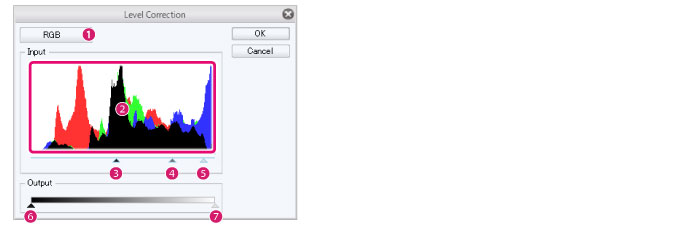
(1) Channel
Select a channel to adjust the levels. You can choose from [RGB], [Red], [Green], or [Blue].
(2) Histogram
This graph displays the volume of the dark areas (left side) and bright areas (right side) as mountain-like peaks.
(3) Shadows
This controls the darkest parts of the image. Drag to the left and right to adjust the brightness of the image. Drag to the left to make the image brighter, or to the right to make the image darker. The [Shadows] control point is usually the furthest left under the histogram.
(4) Midtones
This controls the midtones of the image. When you move the [Shadows] control point or the [Highlights] control point, the [Midtones] control point moves in tandem. You can move the [Midtones] control point without affecting the [Shadows] or [Highlights] control points. Drag to the left to make the image brighter, or to the right to make the image darker.
(5) Highlights
This controls the lightest parts of the image. Drag to the left and right to adjust the brightness of the image. Drag to the left to make the image brighter, or to the right to make the image darker. The [Highlights] control point is usually the furthest right under the histogram.
(6) Shadows output
This controls the darkest parts of the image. Drag to the left and right to adjust the brightness of the image. Drag to the left to make the image brighter, or to the right to make the image darker.
(7) Highlights output
This controls the brightest parts of the image. Drag to the left and right to adjust the brightness of the image. Drag to the left to make the image brighter, or to the right to make the image darker.