Register animation material
This section describes how to register an animation material to the Material palette.
|
|
Animation materials cannot be registered if the timeline is disabled. |
1Select the track
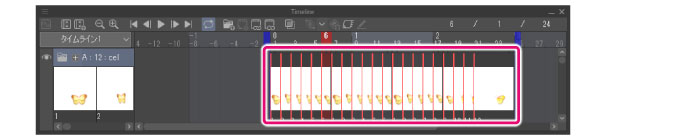
Select the clip to be registered as an animation material in the Timeline palette.
|
|
·If you do not select a clip, the currently selected track is registered as an animation material. ·If tracks or clips have 2D camera folders or keyframes set to them, these settings will also be reflected in the animation material. ·Audio tracks and audio clips can also be registered as animation materials. |
2 Select the command
Select the [Edit] menu > [Register Material] > [Animation].
3Configure the material
The [Material property] dialog box will open. Configure the settings for the material on the dialog box.
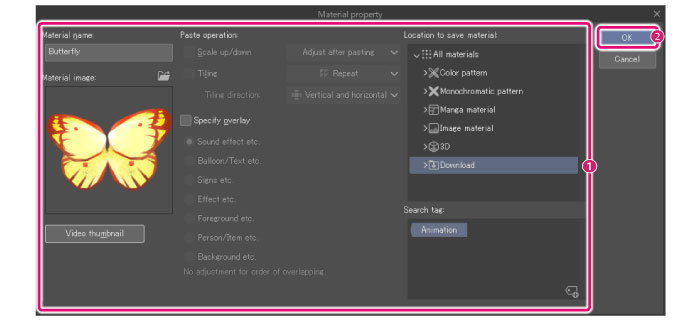
(1) Configure the name, content, save destination and search tag for materials.
(2) Click [OK].
|
|
For details on the [Material property] dialog box, see "Material property Dialog Box [PRO/EX]". |
4Registration of the animation material is completed
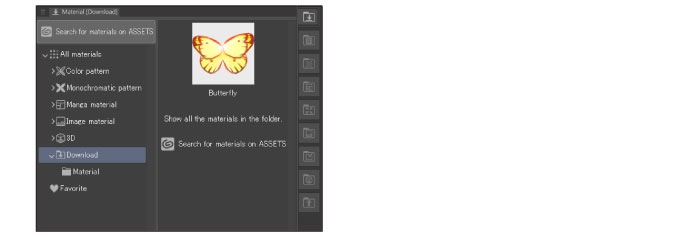
The dialog box closes and the animation material is registered in the Material palette.