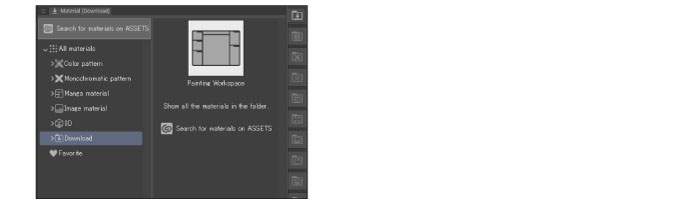
Register Workspace
This section describes how to register a workspace to the Material palette. A workspace is the palette layout including shortcut settings, command bar layout and preferences for unit settings.
1Decide the layout of palettes
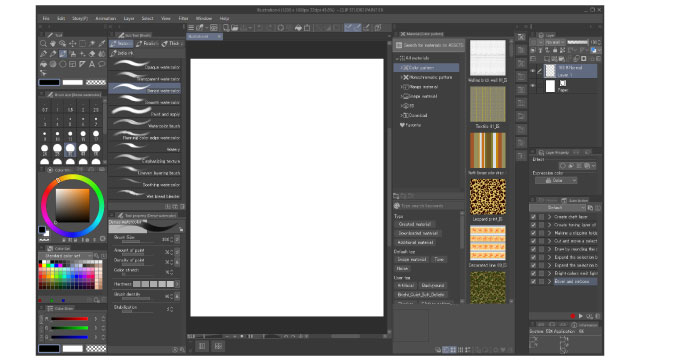
Lay out the palettes. Configure the shortcut settings, command bar layout and preferences for unit settings to the state in which you want to register them.
|
|
·To learn how to set up shortcuts, see "Shortcut Settings [macOS/Tablet]". ·For information on the Command bar layout, see "Command bar settings [Windows] [PRO/EX]". ·For details on Preferences > Unit settings, see "Ruler/Unit". |
2 Select the command
Select the [Window] menu > [Workspace] > [Register workspace as material].
|
|
The [Register Workspace] dialog box is displayed if a workspace is not being used. A workspace with the same settings is registered to the [Window] menu > [Workspace] at the same time that the material is registered. |
3Configure the material
The [Material property] dialog box will open. Configure the settings for the material on the dialog box.
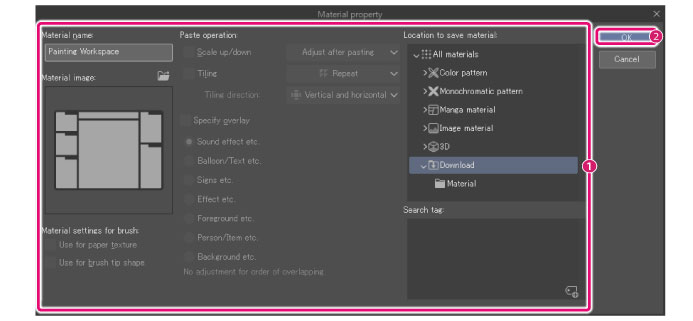
(1) Configure the name, content, save destination and search tag for materials.
(2) Click [OK].
|
|
For details on the [Material property] dialog box, see "Material property Dialog Box [PRO/EX]". |
4The registration of the workspace is complete
The dialog box closes and the workspace material is registered in the Material palette.