


Using the Animation Controller
Poses can be created using the animation controller.
The animation controller is a tool for operating specific areas of 3D character materials, such as the [Hips], [Right hand], [Left hand] and [Eyeline].
The unique characteristic of this operation method is that is can move specific areas (e.g. moving only the hips or the eyeline), without moving other areas.
|
|
·The animation controller is not displayed for 3D character materials compatible with Version 1.5. ·Poses cannot be created with joints fixed in place when moving areas with the animation controller. To create poses with joints fixed in place, select and operate a particular part. ·Joint angle limits are disabled when moving and rotating areas with the animation controller. |
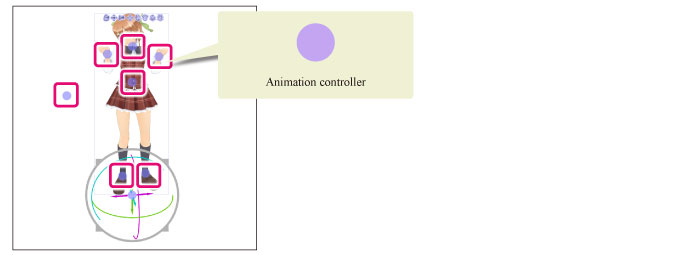
Moving Parts in a Specific Area
This section explains how to move parts in a specific area using the animation controller.
1Select the tool
On the Tool palette, select the [Operation] tool.
2Select the sub tool
Open the Sub Tool palette and select [Object].
3Display the animation controller
Click the 3D character material to edit.
4Select the animation controller
Click the animation controller in the area of the part to be moved. In this example, the animation controller of the eyeline is clicked.
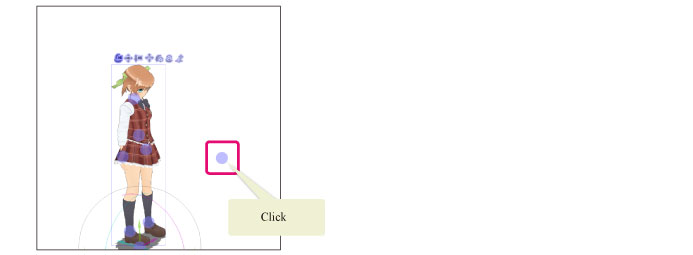
5Moving Parts in a Specific Area
You can move parts in a specific area by dragging the animation controller.
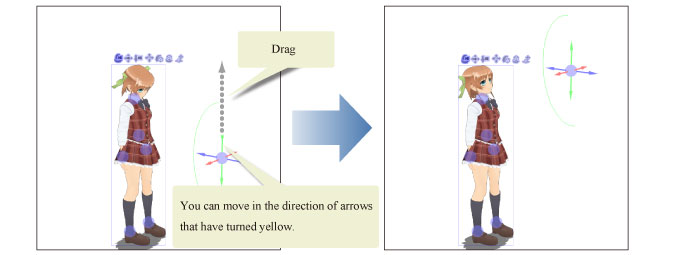
Drag the arrow of the movement controller with the mouse cursor to move the parts in that specific area in the direction of the arrow.
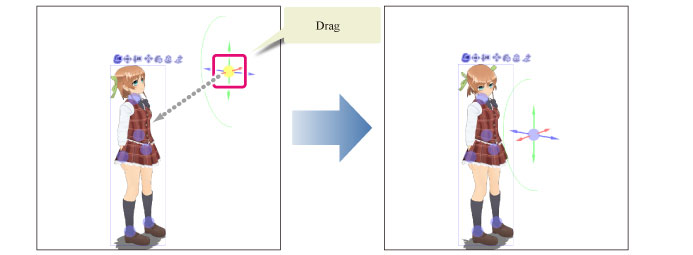
You can move parts in a specific area by dragging the animation controller in the desired direction.
Rotating Parts in a Specific Area
This section explains how to rotate parts in a specific area using the animation controller.
1Display the animation controller
Click the 3D character material to edit with the [Object] sub tool.
2Select the animation controller
Click the animation controller in the area of the part to be moved. In this example, the animation controller of the left hand is clicked.
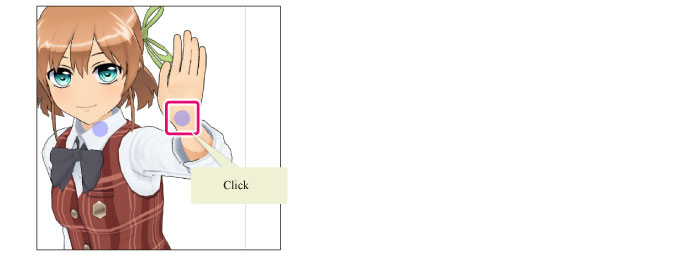
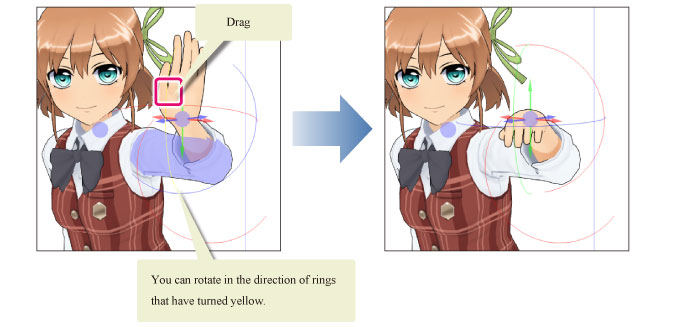
3Rotating a Specific Part
Drag the ring of the rotation handle to rotate the parts in that specific area in the direction of the ring.
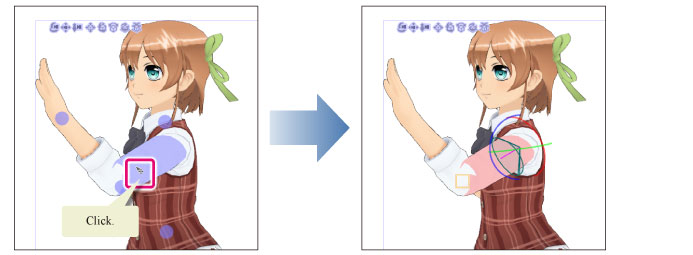
Switching to the Manipulator Display
Click the part displayed in blue to switch to the manipulator display.
|
|
For details on operations using the manipulator, see "Using Manipulators". |