


Using Manipulators
You can operate 3D character materials using the manipulator.
|
|
·If a 3D character material compatible with Version 1.5 is selected, turn on [Manipulator] in the [Preference] category of the Sub Tool Detail palette to display the manipulators. ·If the animation controller is displayed, see "Switching to the Manipulator Display". |
Rotating Parts with the Manipulator
You can rotate parts of 3D character materials using the manipulator.
1Select the tool
On the Tool palette, select the [Operation] tool.
2Select the sub tool
Open the Sub Tool palette and select [Object].
3Displaying the manipulator
Click the part to be moved in the 3D character material or 3D drawing figure being edited.
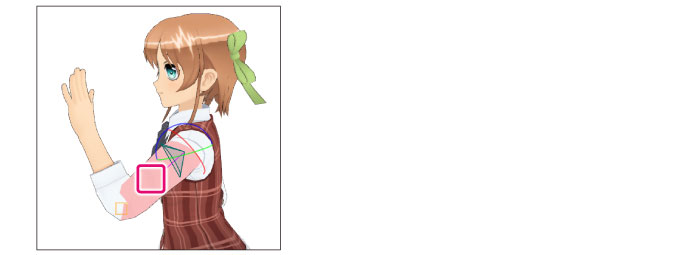
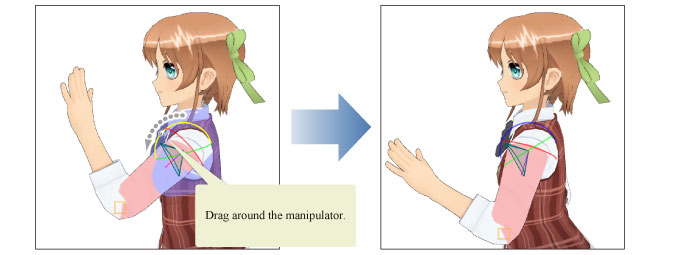
4Move the specific part
Move the mouse cursor to the manipulator and drag in the direction in which to move the part.
Names of parts of manipulator
The manipulator can be rotated in the following directions.
|
|
Some of the manipulators may not be displayed depending on the selected part. |
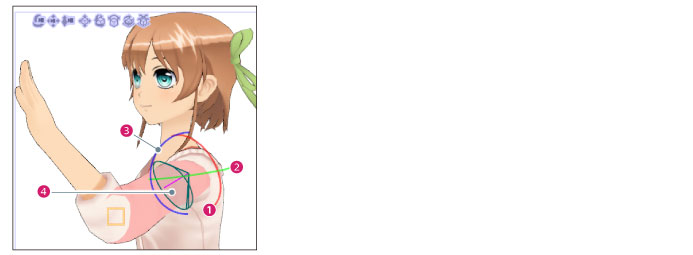
(1) Twisted rotation (red)
Drag along the red ring. Rotates the selected part in the direction of the ring.
(2) Bending rotation (green)
Drag along the green ring. Rotates the selected part in the direction of the ring.
(3) Bending rotation (blue)
Drag along the blue ring. Rotates the selected part in the direction of the ring.
(4) Movable range
Displays the range in which the part can be moved. The movable range is not displayed for 3D character materials compatible with Version 1.5.
Switching to the Animation Controller Display
Click the part displayed in red to switch to the animation controller display.
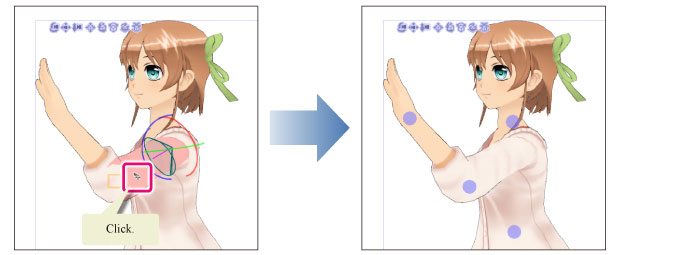
|
|
The animation controller cannot be used for 3D character materials compatible with Version 1.5. |
|
|
For details on how to use the animation controller, see "Using the Animation Controller". |