Fixing and Releasing Joints [Windows/macOS]
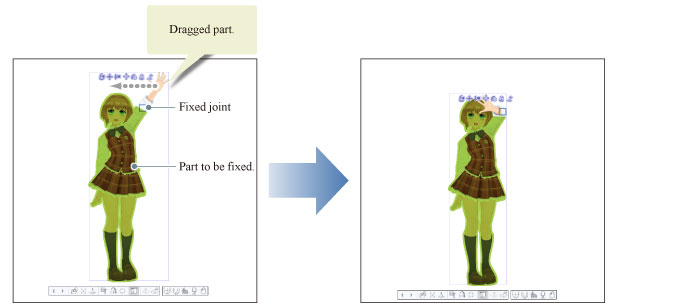
Joints of 3D characters and 3D drawing figures can be fixed. The fixed joint becomes the fulcrum for translation and rotation. Creating a pose is easier if the joints of 3D character materials and 3D drawing figures are fixed. This section describes how to fix and release joints, and the extension of parts fixed when a joint is fixed.
|
|
·When using a Tablet, fix and release of joints using right click can not be applied. Please use [Fix joint] and [Fix all joints] from the object launcher. For details on the Object launcher, see "When a 3D Character Material Is Selected" , "When a 3D Drawing Figure Is Selected". ·When using a Smartphone, fix and release of joints using right click cannot be applied. Settings can be adjusted in the Sub Tool Detail palette. |
|
|
·Some parts are configured with multiple bones such as "Hips" and "Chest". If fixing a joint connecting part does not function as intended, fix another joint. To look for another joint, move the mouse cursor near the part to be fixed. Part edges displayed in red are joints you can fix. ·There is no limit in the number of joints that can be fixed. ·When no joints have been fixed, the "Hips" part is fixed. |
Fixing a Joint
To fix a joint, proceed as follows.
1Select the tool
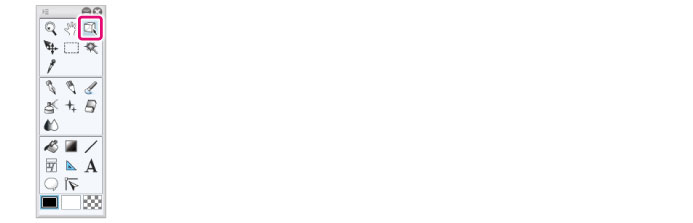
On the Tool palette, select the [Operation] tool.
2Select the sub tool
Open the Sub Tool palette and select [Object].
3Select the 3D material
Click the 3D character material or 3D drawing figure to edit.
4Fixing a Joint
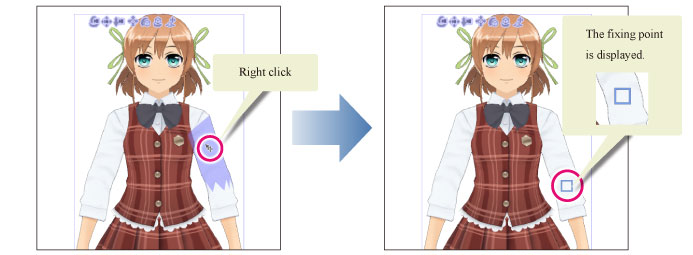
Right click over the part to fix.
A fixing point is displayed at the tip of the clicked part. Joints that can be fixed are those with a fixing point.
Release the fixed joint
To release a fixed joint, proceed as follows.
1Select the tool
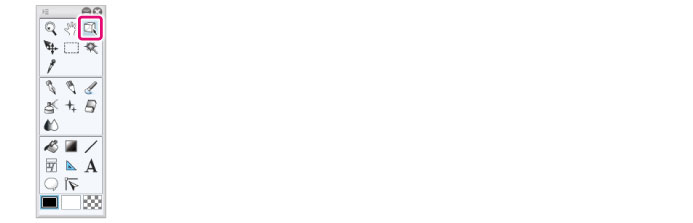
On the Tool palette, select the [Operation] tool.
2Select the sub tool
Open the Sub Tool palette and select [Object].
3Select the 3D character material
Click the 3D character material to edit.
4Release the fixed joint
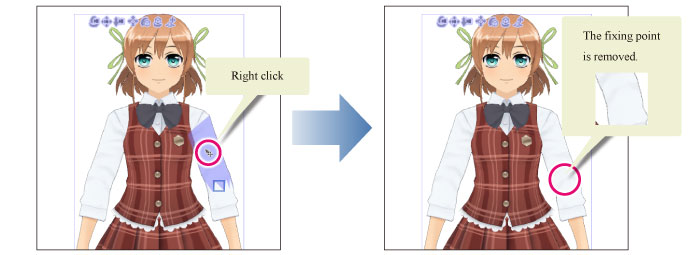
Right click the part whose fixed joint is to be released.
The fixed joint of the clicked part is released and the fixing point, removed.
|
|
Right clicking other than the 3D character material on the canvas releases all fixed points, removing all fixing points. |
Effective Range
The extension of parts fixed as a result of fixing a joint depends on the fixed joint and location of the selection.
Parts on the opposite side of the selection, with center in the fixed joint are fixed.
For example, if you fix the left elbow and select the right shin, the part above the left elbow will be fixed.
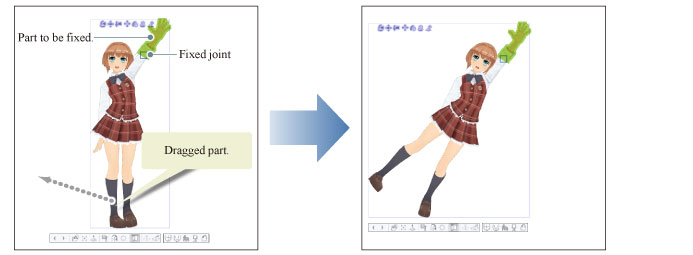
If you fix the left elbow and select the left hand, the right hand, left shoulder, and lower body will be fixed.