


When a surface material in a surface material folder is selected
The following settings can be configured in the [Object information] palette after selecting a [Surface material] in a [Surface material folder] when [Material] is selected in the [Group] of the [Object configuration] palette.
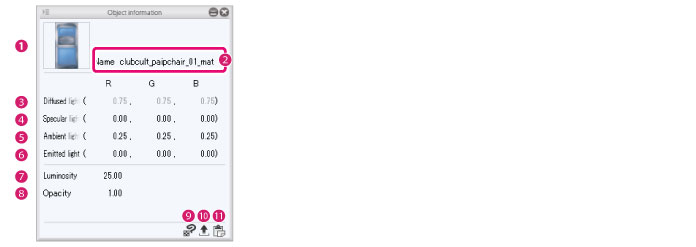
(1) Import texture
When a texture image is linked to the [Surface material] selected in the [Object configuration] palette, a preview of the texture image is displayed. Click this to display the dialog box for selecting a file. Import the image file to be set as the texture and replace the texture image.
|
File formats that can be imported |
BMP, JPG, PNG, TIFF, TGA |
(2) Name
Displays the name of the selected surface material. Double clicking the field allows you to enter a surface material name. The input name is applied to the [Object configuration] palette.
(3) Diffused light
The RGB value for the [Diffused light] of the [Surface material] can be adjusted.
[Diffused light] is light that creates an even (diffused) reflection when the light source illuminates a [Surface material].
|
|
[Diffused light] cannot be set when a texture image is linked to the [Surface material]. If a texture image is linked, the [Texture image] is displayed in the [Object information] palette. |
(4) Specular light
The RGB value for the [Specular light] of the [Surface material] can be adjusted.
(5) Ambient light
The RGB value for the [Ambient light] of the [Surface material] can be adjusted.
[Ambient light] is light that illuminates the 3D object evenly from all directions.
(6) Emitted light
The RGB value for the [Emitted light] of the [Surface material] can be adjusted.
(7) Luminosity
The luminosity of the [Surface material] can be set.
(8) Opacity
The opacity of the [Surface material] can be changed.
(9) Edit in PAINT
If CLIP STUDIO PAINT is installed on your computer or device, the texture linked to the [Surface material] can be edited in CLIP STUDIO PAINT.
For details, see "Editing Textures in CLIP STUDIO PAINT" .
|
|
[Edit in PAINT] cannot be set when a texture image is linked to the [Surface material]. |
(10) Export texture
The texture linked to the [Surface material] can be exported as an image in PNG format.
|
|
[Export texture] cannot be set when a texture image is linked to the [Surface material]. |
(11) Paste texture
Replaces the texture linked to the [Surface material] with the image on the clipboard.
|
|
[Paste texture] cannot be set when a texture image is linked to the [Surface material]. |