


Sound Effect Lettering in Frame 4
Color the "Bang" layer in Frame 4.
1On the [Layer] palette, select the "Bang" layer and change the [Expression color] to [Color] on the [Layer Property] palette.

2Select the [Selection] menu → [Select Color Gamut] and set [Error margin of color] to "10" in the [Select Color Gamut] dialog box.
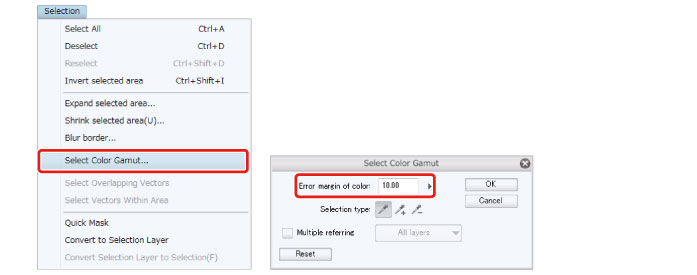
3Click the white part of the "Bang" sound effect on the canvas and click [OK] in the [Select Color Gamut] dialog box.
All of the white areas on the "Bang" layer are selected.

4Select a pale orange on the [Color Wheel] palette and click [Fill] in the [Selection Launcher].

The areas surrounded by the selection are colored.
5Draw over the area in reddish purple using the [Soft] sub tool of the [Airbrush] tool.

6After you have finished filling with the gradient, click the [Selection] menu → [Deselect] to deselect the selected area.
7Add white edges to the sound effect lettering. Click [Border effect] on the [Layer] palette and set [Thickness of edges] to "20".

8Coloring of the main lines of the character and the sound effect lettering is now complete.

|
|
For details on [Lock Transparent Pixel], see "Try Drawing an Illustration in CLIP STUDIO PAINT: Basic Guide" → "Basic Coloring" . |